What this looks like in mydubly
Three ways to translate a video
- Voice (dubbing)
- A new spoken track in the target language, timed to the original. See AI dubbing.
- Subtitles
- Translated SRT and VTT files for YouTube, players and editors. See the subtitle generator.
- Transcript
- The translated text with timestamps, for reading, research and quotes.
A full translation gives you all three. Switch to text-only when you don't need a voice — it costs 5 credits per minute instead of 120.
What makes this video dubbing tool different
- By default your video isn't uploaded. The browser extracts the audio, and the translated MP4 is assembled on your device — useful for unreleased, internal or personal footage. Optional Server assist is available when a phone cannot decode locally.
- Long videos work: up to 2 hours per file, so full lectures, webinars and episodes don't need splitting.
- Pay per minute, no subscription: a 10-minute video with a translated voice costs 1,200 credits ($1.20).
- Any-to-any: the spoken language is detected automatically across about 100 languages; any of 21 can be the translation target for subtitles and transcripts; a voice track is available in 19 of those (all except Czech and Vietnamese).
How it works
- Drop in a video. Your browser reads it and pulls out only the audio — the video file never leaves your device.
- The audio is processed in 30-second chunks: speech is transcribed and the spoken language is detected automatically.
- Each segment is translated into your chosen language.
- The different people speaking are told apart (up to 8), and each person's lines are spoken in a copy of their own voice, taken from a short clean sample of their speech. Each line is fitted to the original timing — sped up by at most 1.15× with natural pitch.
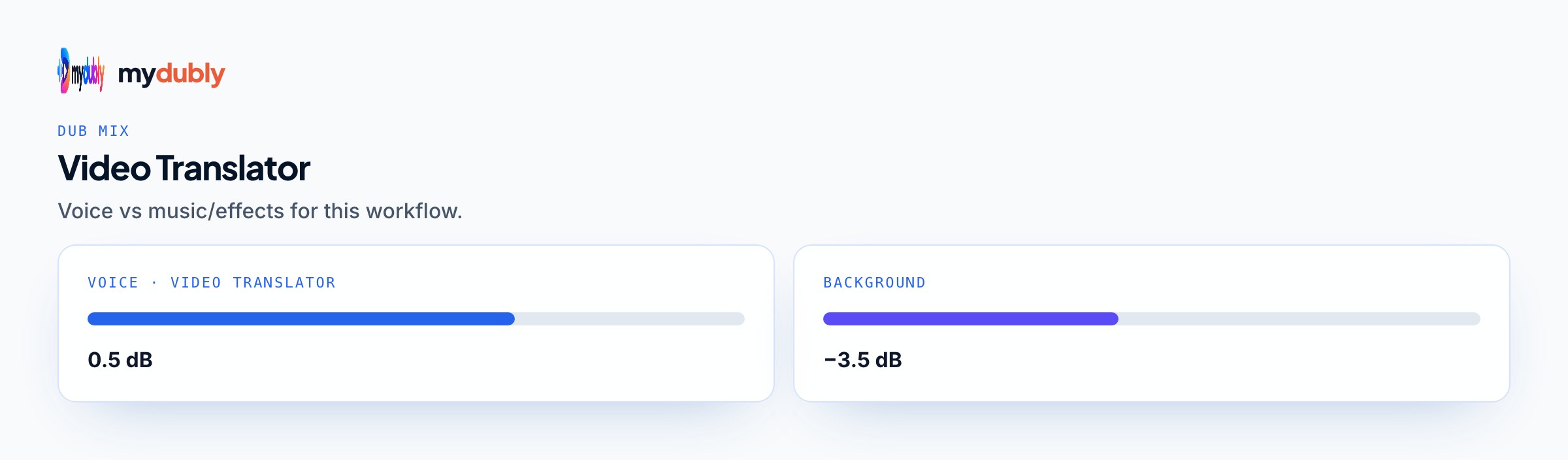
- AI vocal separation removes the original speech, and the translated voice is mixed over the remaining music and effects, which dip automatically while the new voice speaks.
- Your browser combines the original picture with the new audio and saves an MP4.
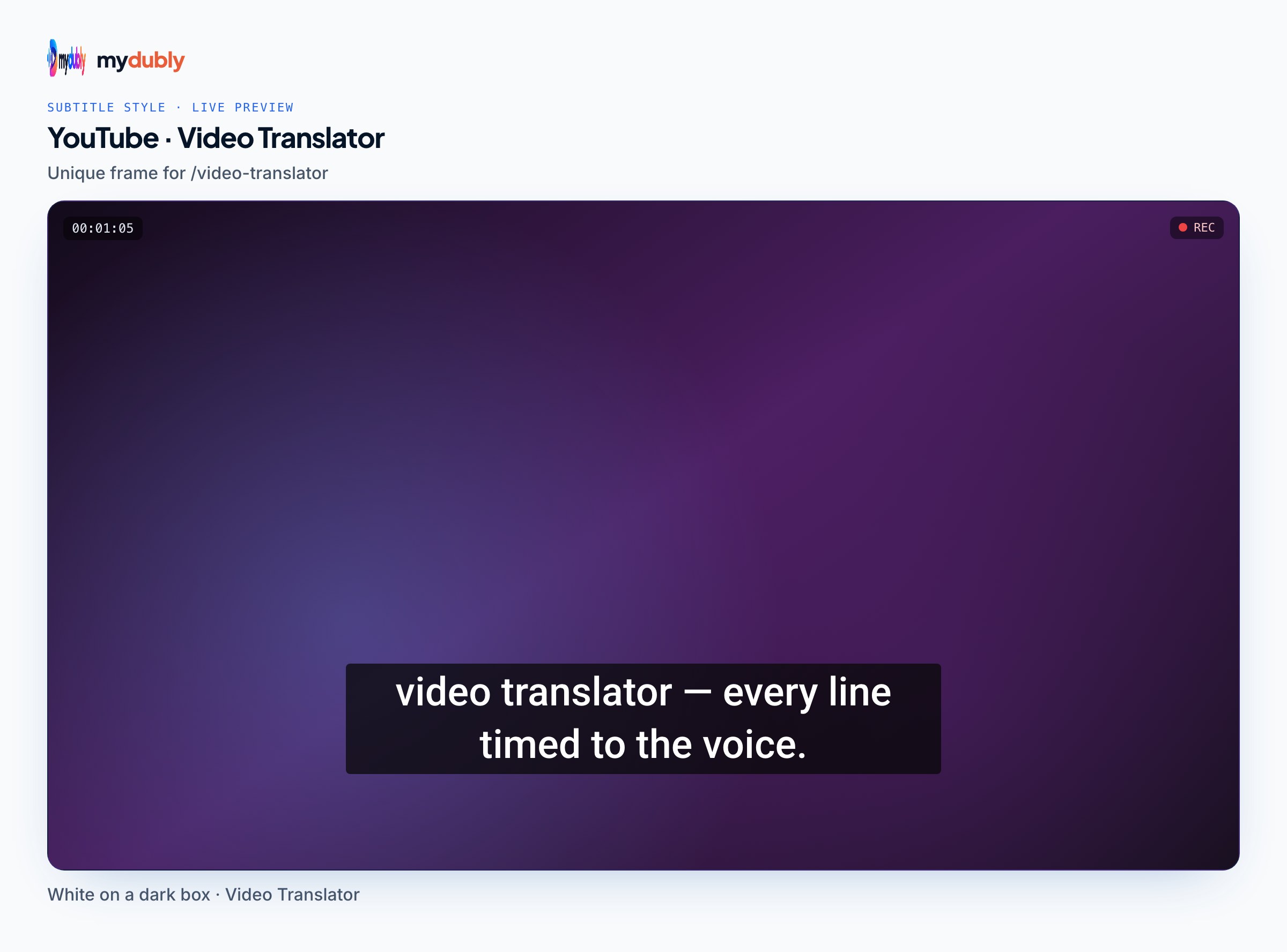
- The dub editor opens on the finished dub. Fix words, move a line's timing, change a line's level, the background, the cleanup of leftover original speech or the loudness, and style subtitles, then re-process once: only changed lines are voiced again (free for timing, levels, background, leftover-speech cleanup, ducking, loudness and subtitles; re-voiced lines cost 120 credits per minute of those lines, minimum 60 credits per re-process).
- Download the results. A dub's audio, script and voice files stay on our servers for 120 minutes after it finishes or after you last use the editor, so you can fine-tune it, and are then deleted; the editor's "Delete files" button removes them at once.
What you get
- Translated video
- MP4 with your original picture and the translated voice over your original music and effects (MKV when the original video codec can't go in an MP4)
- Translated audio
- M4A with the same mix: translated voice over your original music and effects
- Transcript
- Plain text (.txt) of what was said
- Timestamped transcript
- Every line prefixed with its time, e.g. [12:04]
- Subtitles
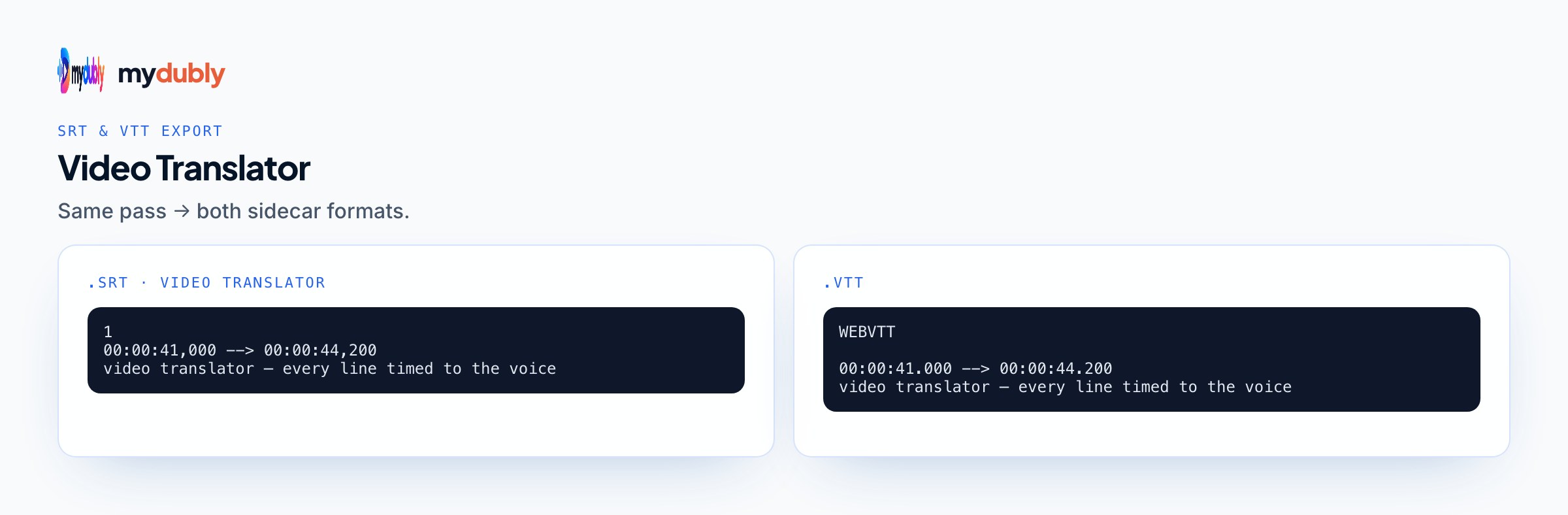
- SRT and VTT, in the language you select
Supported files
- Video: MP4, WebM, MOV, MKV, M4V — whatever your browser can read.
- Length: up to 2 hours per file.
- Languages: speech is recognised in 100 languages (Whisper); translation covers 21 of them, with a translated voice in 19 (all except Czech and Vietnamese).
Pricing
- Transcript and subtitles
- 5 credits per minute (0.5¢), minimum 25 credits per file
- YouTube link transcript
- 15 credits per minute (1.5¢), minimum 75 credits per link
- Translated voice (includes everything above)
- 120 credits per minute (12¢), minimum 2 minutes per file
- Text to audio
- 120 credits per minute (12¢), minimum 2 minutes per file
- Corrections in the dub editor
- free for timing, levels, background, leftover-speech cleanup, ducking, loudness and subtitles; re-voiced lines cost 120 credits per minute of those lines, minimum 60 credits per re-process
- Credits
- $1 buys 1,000 credits; each top-up lasts 30 days
- Free credits
- 240 credits when you sign in with Google
Privacy
By default your video is not uploaded — only its audio is, over HTTPS in small chunks. Optional Server assist uploads the media for a job when you turn it on. A dub's audio, script and voice files stay on our servers for 120 minutes after it finishes or after you last use the editor, so you can fine-tune it, and are then deleted; the editor's "Delete files" button removes them at once. Nothing is used to train models. Your account keeps only the file name, length, languages and credits used. Details in the privacy policy.
Good to know
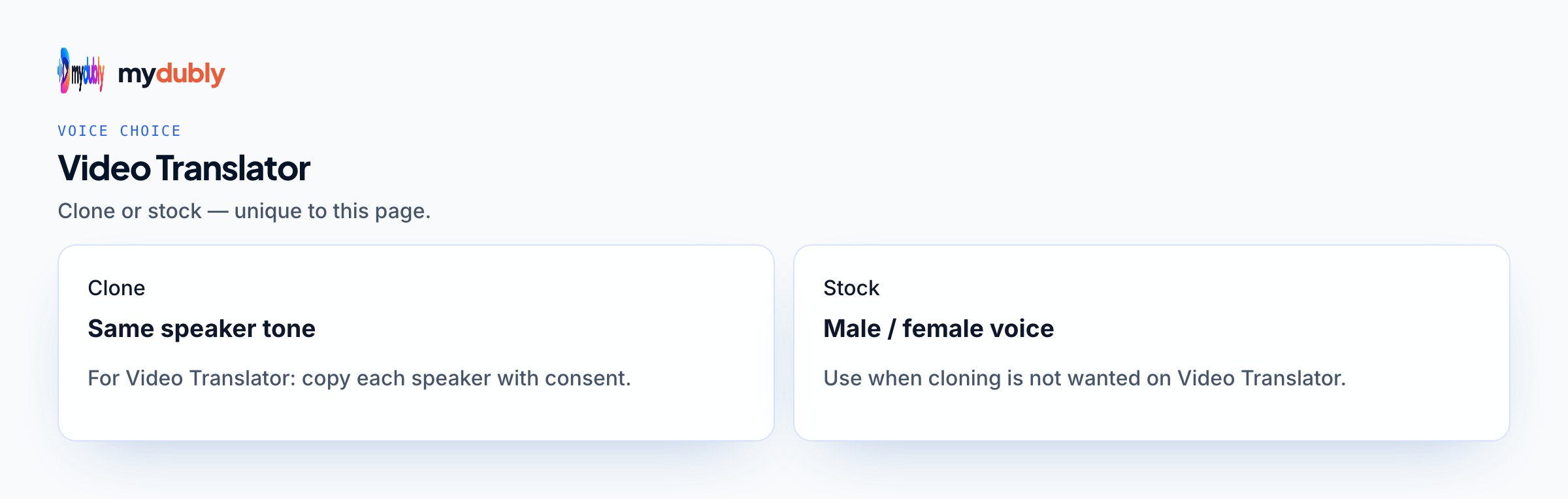
- Each person is dubbed in a copy of their own voice (up to 8 people per file), with natural pronunciation for the new language. Telling people apart is automatic, so crosstalk, very short interjections or two very similar voices can end up in the wrong voice, and overlapping speech overlaps in the dub by at most about two seconds. Someone with too little clean speech to copy gets the copied voice of a similar-sounding person in the file, or otherwise a stock voice matching their voice (female or male). There is no lip-sync.
- Music and sound effects are kept by AI vocal separation, which isn't perfect: in dense mixes faint traces of the original voice can remain, and sung lyrics are removed along with the speech.
- The dub editor corrects the dub mydubly made: it doesn't import your own SRT or script, and a dub can be re-processed up to 40 times while its files are kept.
- No speaker labels — transcripts don't say who is speaking.
- File uploads stay file-based: no Instagram or TikTok links, and no live audio. For a YouTube link transcript only, use the YouTube transcript tool — and only for videos you have the right to transcribe.
- Subtitles come as SRT/VTT files; to burn them into the picture, use the free subtitle editor.
Who reaches for a video dubbing tool
Most people arrive with one of three goals, and each points to a different run. Creators and marketers want a version of a finished video that viewers abroad will actually watch. Training, HR and support teams want the same content available at every site without re-filming it. And a large group simply received a video in a language they don't speak and want to know what it says.
That last group rarely needs a voice. Transcript mode with a target language puts the translation next to the original on the result screen for 5 credits per minute, which is a fraction of what dubbing costs. Save dub mode for videos someone will publish.
Dub mode or transcript mode, decided per video
- Viewers watch with sound on, or read the target language slowly
- Dub mode: a translated voice track merged with your picture, plus subtitles
- Captions are normal on the platform, or several people talk over each other
- Transcript mode with a target language: translated SRT and VTT files
- You only need to understand what was said
- Transcript mode: read the translation beside the original on the result screen
- You want to edit or remix the voice yourself
- Dub mode, then take the translated audio (M4A) into your editor; dub a dialogue-only export if you want the voice without the background
One difference catches people out. In dub mode, the subtitles follow what the voice actually says, including lines that were shortened to fit the original timing, so captions and voice always agree. In transcript mode the subtitles carry the full translation of each segment with no timing squeeze. If you publish a dub with captions, use the dub-mode file. The subtitles vs dubbing guide covers the audience side of this decision.
Three runs, costed
Dub mode: 960 credits (96¢). The MP4 goes on the landing page and the German SRT covers muted autoplay. Reading the subtitle file is the quickest way to check that product names survived translation.
Transcript mode with English as the target: 55 credits (5.5¢), enough for a team that only needs to read what was said. A dub would give each panellist a copy of their own voice, at 2,750 credits ($2.75). Transcripts don't label speakers, so add names by hand where attribution matters.
Transcript mode with your own language as the target: billed at the 25-credit minimum, 5 credits (0.5¢).
Translating into several languages means one run per language. A 20-minute training video dubbed into Spanish, French and Polish is three runs of 2,400 credits each: 7,200 credits ($7.20).
Where a machine translation slips, and how to catch it
- Names and brand terms: if speech recognition mishears a name, the translation carries the error forward. Search the transcript for every name and product before you look at anything else.
- Idioms, jokes and wordplay: these tend to come out literally. Flag them for a fluent reviewer rather than trusting the voice.
- Music and sound effects: the original speech is separated out and your background is kept under the translated voices, lowered while they speak. In dense mixes faint traces of the original voices can remain, and sung lyrics are removed along with the speech. Background music in translated videos covers what to listen for and the optional route of dubbing a dialogue-only export and mixing the translated voices with your own music stem.
- Speakers who switch languages mid-sentence: detection works on the audio it hears, so mixed passages can come out unevenly. See videos that change language.
- Words that appear only in the picture, such as slide titles and lower thirds: mydubly translates speech, so these stay in the original language.
A broader list with workarounds is in what AI video dubbing can't do yet.
Where each download goes after a dub run
- Translated video (MP4, or MKV for some codecs): upload it as a separate video on platforms with one audio track per video, or embed it on a language-specific page of your site.
- Translated audio (M4A): the file to add as an extra language track where a platform supports several, or to drop into your editor for trims and fixes. It is the same mix as the MP4's audio, background included, so it can't be rebalanced on its own; for your own music levels, dub a dialogue-only export and mix the translated voices with your music stem.
- Subtitles (SRT and VTT): SRT for YouTube and most editors, VTT for players built on the HTML video element. Both follow the dubbed voice.
- Transcript: the original-language text, useful as the source for a translated description or blog post and as a reference for your reviewer.
Keep the original and every language version in one project folder with the language in each file name. When the source video changes, you'll know at a glance which versions need a new run.
Pages for your language, file or job
Each target language has its own page about what changes when a video moves into it: Arabic for right-to-left subtitles, Japanese for politeness levels and line length, Spanish for choosing between the Latin America and Spain options in the picker. For specific jobs, start from YouTube videos, training videos or webinars. Phone footage usually arrives as MOV; MOV files covers its quirks. The step-by-step translation guide walks through a first run.
Translate video into…
Language pairs
What changes between two specific languages: the most-searched pairs have their own page, the rest are covered on the target language's page.
- Hindi to English
- English to Hindi
- Japanese to English
- Korean to English
- Chinese to English
- Spanish to English
- Arabic to English
- Russian to English
- French to English
- German to English
- Portuguese to English
- Turkish to English
- Italian to English
- English to Spanish
- English to Japanese
- English to French
- English to German
- English to Portuguese
- English to Chinese
- English to Arabic
- English to Korean
By file format
See also
Learn more
Articles that go deeper on the technology and workflows behind this tool.
- AI video dubbing, explained: what you get and who it's for
- Inside an AI video dubbing pipeline, stage by stage
- Should a machine or a professional translate your video?
- Judging the accuracy of AI video dubbing on your own footage
- Video translation turnaround: what takes time and how to plan for it
- Translating hour-long and two-hour videos with AI
- Spanish for Mexico or Madrid? Adapting translated video to a regional market
- What AI Video Dubbing Can't Do Yet, and What to Do Instead
- Producing Videos That Translate Cleanly Later
- Code-Switching, Bilingual Speakers and Videos That Change Language
- The A-to-Z of Video Dubbing Terms
- AI translation, explained: how a machine turns one language into another
- Inside neural machine translation: encoders, decoders, beam search and back-translation
- Large language models or dedicated NMT engines: which should translate your content?
- What a translation engine can't see: pronouns, gender, formality and meaning across sentences
- The machine translation errors reviewers find most, with an example of each
- Measuring translation quality: BLEU, chrF, COMET, MQM and a spot check you can actually run
- Names, brands, jargon and acronyms: getting specialist terms right in translation
- Fixing machine translation efficiently: light and full post-editing for transcripts and subtitles
- How to pick the languages your videos should be translated into
- One Channel or Several? Structuring a Multilingual YouTube Presence
- One Recording, Many Languages: Planning a Repurposing Workflow
- Translating Your YouTube Back Catalog: What to Do First
- Translating Stream VODs: Long, Noisy and Full of Chat
- Dubbed Audio, Subtitles or Transcripts? Videos for Students with Other Home Languages
- Reaching Every Family: Translating School Videos into Home Languages
- Pivot Language Translation: Why So Much Translation Passes Through English
- How to Translate Swearing and Sensitive Language in Subtitles
- Back Translation: Spot-Checking a Video Dubbing You Can't Read
- Finding a Reviewer for an AI Translation, and Briefing Them Well
- How to Split a Video into Parts Without Losing Quality
- Converting MOV to MP4 and Other Video Formats Without Wasting Quality
- Working With Footage in a Language You Don't Speak: A Reporter's Workflow
- Using AI Translation in Language Classes Without Short-Circuiting Learning
- Running a Support Video Library in More Than One Language
- Translating Safety Training Videos Without Losing the Warnings
- Product Videos for International Stores: A Translation Playbook
- Translating Patient Education Videos Safely
- Public Information Videos in Every Language Your Community Speaks
- Translating Someone Else's Video: Copyright Basics Before You Publish
- Reading, Replying to and Moderating Comments in Languages You Don't Speak
- How Video Codecs Shrink Moving Pictures, and Why It Matters for Your Files
- Variable Frame Rate Video: Why It Happens and When to Convert It
- When a Video File Has More Than One Audio Track
- Why HEVC Phone Videos Don't Always Play, and How to Fix It
- Why Your Audio Drifts Away From the Picture, and How to Fix It
- What to Do When a Video Is Too Big to Send or Upload
- Silent After Export: Tracking Down a Video's Missing Audio
- Unsupported Video File Errors: What the Message Really Means
- MP4 vs MOV: Two Video Containers and When Each Makes Sense
- Where AI Video Dubbing Is Heading, and What Is Still Guesswork
- Writing a Plain Language Video Script That More Viewers Can Follow
- Demuxing Explained: How Players and Tools Pull Streams Out of a Video File
- PTS and DTS: How Video Files Record When Each Frame Is Decoded and Shown
- How Players Keep Sound and Picture Together: Master Clocks, Timestamps and Frame Drops
- Keyframes and GOP Structure: How Frame Types Shape Seeking, Cutting and File Size
- Inside an MP4 File: Boxes, Sample Tables, Fast Start and Fragments
- Video Frame Rates in Practice: 24, 25, 30, 60 and the Odd 29.97 Family
- The Media Processing Pipeline: From Probe to Package, Stage by Stage
- Video Bitrate Explained: Rate Control, File Size and Export Settings
- Hardware Video Decoding: Why Some Files Play Smoothly and Others Stutter
- Interlaced or Progressive: Fields, Frames, Combing and Deinterlacing
- Video Asset Management for Creators: Folders, Names, Masters and Backups
- A One-Page Localization SOP for Every Upload
- Publishing Language Versions of a Video Across Platforms and Your Own Site
- Handing a Localization Edit to a Freelance Editor: The Complete Checklist
- Sound but No Picture: How to Fix a Video That Plays Black
- Why Your Video Stutters, and Whether the File Is to Blame
- MKV vs MP4: What Each Container Can Hold and Where It Plays
- H.264 vs H.265: Choosing Between AVC and HEVC for Each Destination
- Translation, Transliteration and Transcription: Meaning, Letters and Sounds
- How to Translate a Loom Video
- How to Translate a Recorded PowerPoint Presentation
- How to Translate Family Videos So Every Relative Can Follow
- Can You Translate a Video With Google Translate?
Prefer one workspace for all mydubly tools? Open this tool in the dashboard · Browse every tool
Frequently asked questions
How accurate is AI video dubbing?
For clear speech by one or two speakers, the transcript and translation are usually very good. Names, jargon, idioms and noisy audio cause most mistakes, so review the translated transcript before publishing important videos.
Can I translate a video into several languages?
Yes — run the video once per language. Each run is billed separately.
Can AI translate a video?
Yes. Drop in your file, pick a language, and mydubly produces a translated voice track (in 19 languages), subtitles and transcripts. It is not live/real-time translation of a stream — it works on recorded video files up to 2 hours.
How do I translate a video to English (or another language)?
Upload the video above, choose English (or your target) as the language, and run a full translation for voice + subtitles, or text-only if you only need subtitles and a transcript. Language-specific pages such as translate video to English and translate video to Hindi walk through the same tool.
Can I translate any video file?
Yes, for a file you can open in the browser: MP4, MOV, WebM, MKV or M4V, up to 2 hours. Pick the target language (English is one of 21) and you get a translated voice where available, subtitles and a transcript. It does not open a YouTube, Instagram or TikTok link — use the file, or the YouTube transcript tool if you only need the words.
How long can my file be?
Up to 2 hours per file. Split longer recordings into parts.
Do I need to choose the spoken language?
No. It's detected automatically from the audio.
Is my video uploaded?
By default no — only audio chunks are sent and the picture stays on your device; the translated MP4 is assembled in your browser. Optional Server assist uploads the media for that job when you turn it on (useful on phones), then deletes it with the usual retention window.
Which Spanish or Portuguese option should I pick?
The picker offers Spanish (Latin America), Spanish (Spain), Portuguese (Brazil) and Portuguese (Portugal). Choose the one where most of your viewers live. If your audience spans both, dub a short clip in each and play the previews before committing a long video.
Can I translate a YouTube video by pasting its link?
No. The file has to be on your device. If it's your own upload, YouTube Studio lets you download the original; for someone else's video, you need the file and the right to translate it.
Does the translated MP4 keep my original picture?
Yes. The translated voices are merged with your original picture in the browser. When the video codec can't go into an MP4, you get an MKV instead, which some editors and phones handle less well, so test it where you plan to play it.