What Teachable supports today
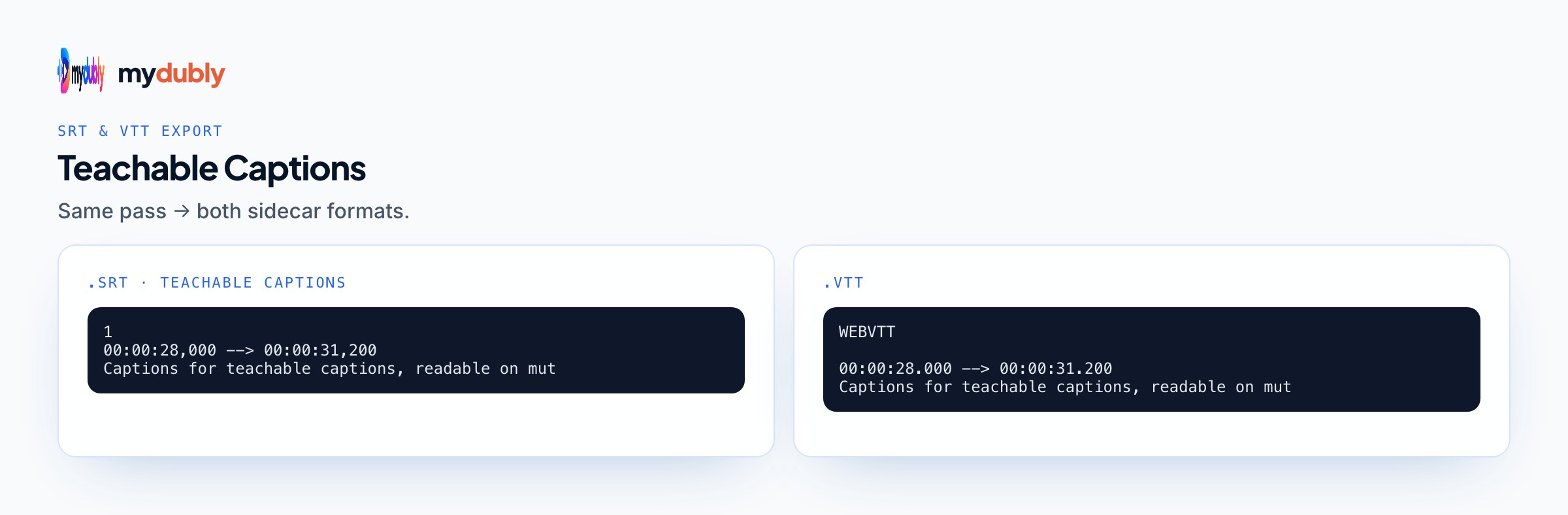
Teachable's interface says "subtitles" rather than captions, and it offers two routes for course videos: auto-generated subtitles, or a subtitle file you upload yourself. Both work only for videos inside course lessons.
- Upload formats
- .srt and .vtt. You pick the language of each file as you upload it, so one lesson can carry several languages.
- Auto-generation
- Only for audio spoken in Arabic, Dutch, English, French, Italian, Portuguese (Brazil) and Spanish. Announced for schools on a paid plan.
- Auto-translation
- Into around 70 languages, starting from the auto-generated subtitles. The help center says up to 70; the launch note in Teachable's changelog said 71.
- Course-wide setup
- A Video Settings section on the course's Information tab can switch on auto-generation and translation for every video in the course.
- Sales and coaching pages
- No auto-generated or uploaded subtitles. Teachable recommends adding subtitles in a video editor before you upload.
The quiet consequence of that table: a course spoken in Hindi, German, Japanese, Korean, Polish or Turkish gets neither auto-generated subtitles nor auto-translation from Teachable. Every track, including the one in the language you speak, has to arrive as a file. Teachable's own help article on creating subtitle files says as much and points creators to outside tools.
Choosing a route for your course
- Spoken in one of the seven languages and Teachable's draft is good enough after a review: use auto-generation and its translations, and correct errors in the result.
- Spoken in another language: upload a file for the original language, and one per translated language.
- You want control over wording, line breaks and technical terms: upload your own files even if your language is supported. Teachable itself notes that manual files give more control over accuracy and timing.
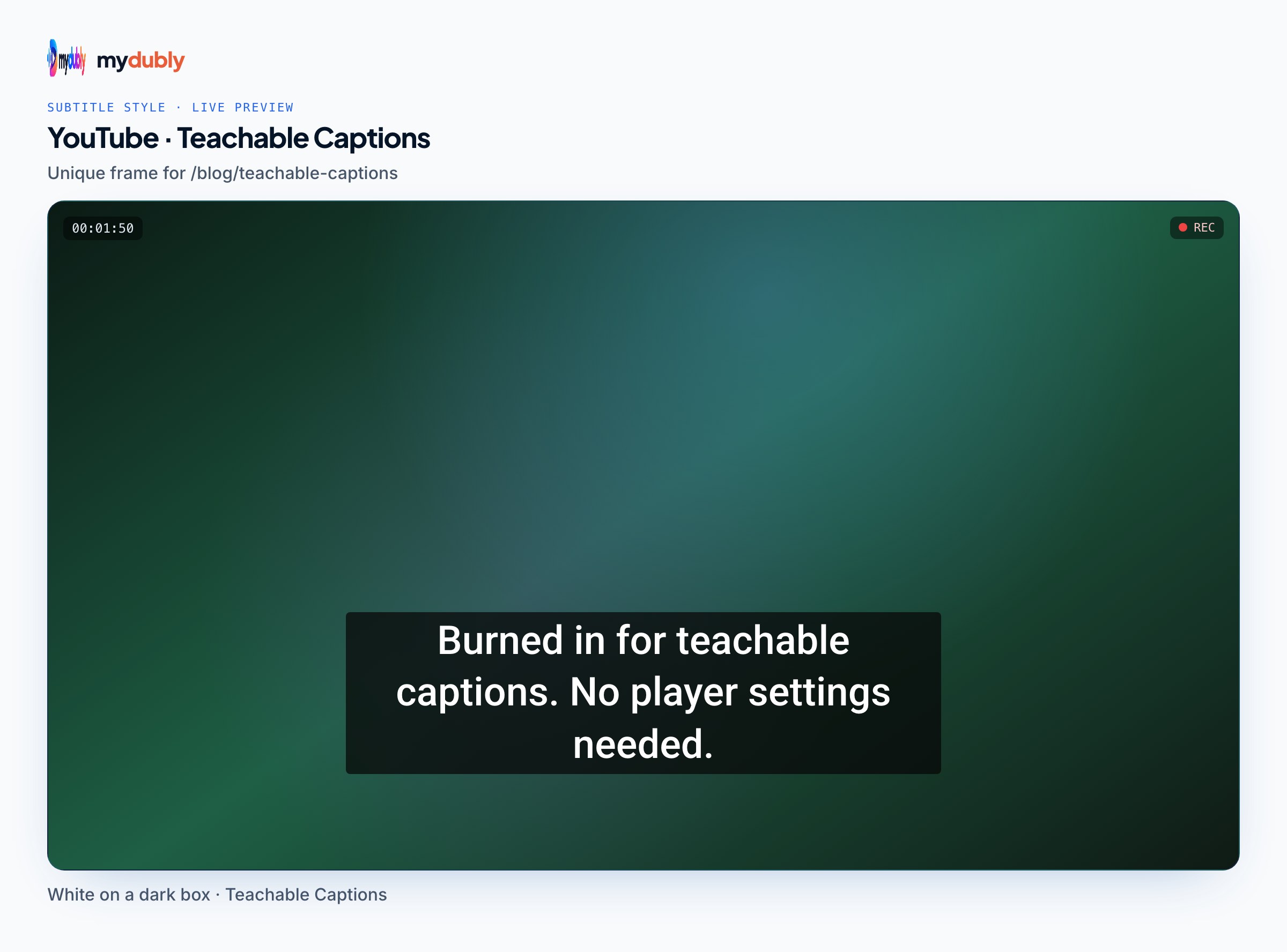
- The video sits on a sales or coaching page: burn the subtitles into the video (covered below).
Many creators mix the routes. An English course might use auto-generated English subtitles for convenience but upload a reviewed Spanish file because the course uses product names that machine translation mangles.
Step by step: upload an SRT or VTT to a Teachable lesson
- Export the final version of the lesson video and keep it. Subtitles are timed to one exact cut, so make them from the same file you upload to Teachable.
- Create the subtitle file. With the mydubly subtitle generator, drop in the lesson video, choose the spoken language, and download the SRT or VTT. Run it again with a different output language for each translated track.
- Review the file before it goes near your course: names, numbers, brand and tool names, and any line that runs long.
- In Teachable, open the course curriculum, open the lesson, and find the video block.
- Click the Settings (gear) icon on the video block and scroll to the Add subtitles section.
- In the Choose subtitles source menu, select Upload .srt or .vtt.
- Pick the language of the file, click Upload subtitle, and choose the file in the popup.
- Preview the lesson as a student, turn subtitles on, and spot-check the opening line, a line in the middle and the last line.
- Repeat steps 5 to 8 for each additional language.
If the first line appears early or late by the same amount throughout, the file was probably made from a version with a different intro. Re-create it from the uploaded cut rather than nudging timings by hand.
Making the files with mydubly
The subtitle generator transcribes speech in 100 languages and can translate the result into any of 21 languages, one output language per run. Each run gives you both SRT and VTT, so you can upload whichever you prefer; Teachable takes either, and SRT vs VTT explains the small differences. Your video stays in the browser; only the audio track is uploaded, processed, and deleted within 30 minutes of the job finishing.
Pricing is 5 credits per minute with a minimum of 5 credits per file, where 1 credit is 0.1¢:
- 9-minute lesson
- 9 credits (0.9¢) per language
- 3-minute welcome video
- 5 credits (0.5¢), because of the per-file minimum
- 30 lessons, 240 minutes in total
- 240 credits (24¢) per language
New accounts start with 240 free credits, and registered accounts get 10 free credits a day, which covers a short lesson or two while you test the workflow.
A teacher in Pune records 22 lessons in Hindi. Teachable can't auto-generate Hindi subtitles, so she makes a Hindi SRT for each lesson and a second run per lesson with English as the output language. In each lesson's video block she uploads both, choosing Hindi and English as the file languages, and students pick their track in the player.
An English-speaking instructor uses Teachable's auto-generated English subtitles but replaces the Spanish track with an uploaded file, because the auto-translated version translated function names that should have stayed in English.
Sales pages and coaching videos: burn the captions in
Teachable's subtitle features stop at the course curriculum, and its help center suggests adding subtitles in an editor before uploading videos elsewhere. That means open captions: text drawn into the picture, visible to everyone, including the many visitors who watch sales videos on mute.
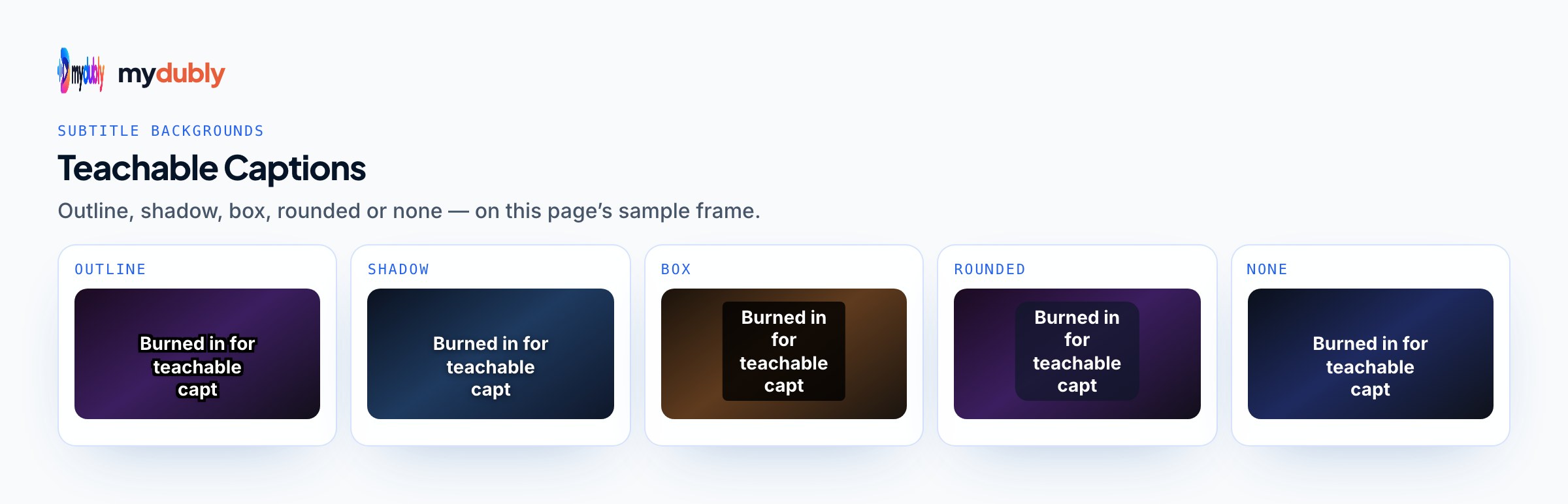
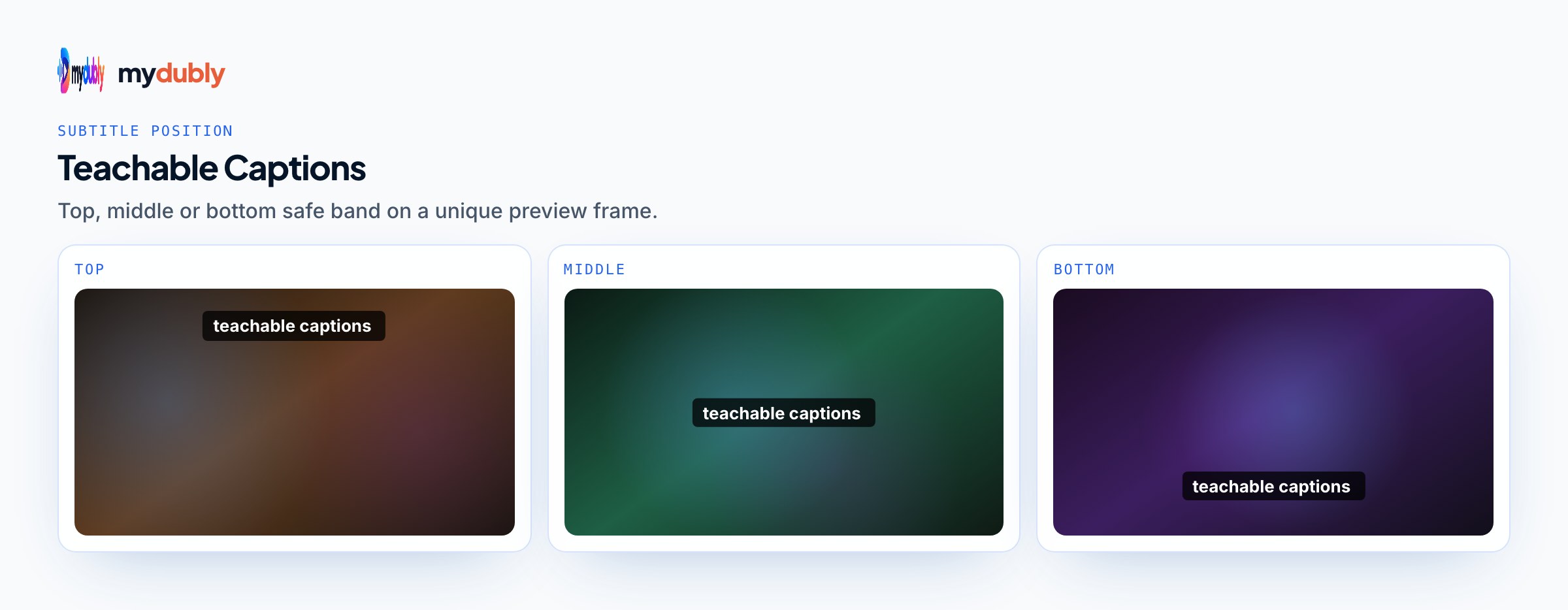
The free subtitle editor does this in the browser. Open the MP4 or MOV, import the SRT you made (or type the lines by hand), pick one of the style presets, set the position and check the "Show safe area" guide so text clears the player controls, then export an MP4 with the subtitles burned in. Rendering happens on your computer and nothing is uploaded; it needs Chrome or Edge 94+, Safari 16.4+ or Firefox 130+ on a desktop or laptop. Upload the rendered MP4 to the sales page in place of the original.
Burned-in text can't be switched off or swapped for another language, so a sales video for two markets means two rendered copies, one per language. Keep the unsubtitled master too, so a later correction means re-rendering rather than re-recording.
Check the file before students see it
Teachable warns that auto-generated subtitles can contain wrong words, punctuation and timing, and the same is true of any AI draft. A ten-minute pass per lesson catches most problems:
- Product, tool and people's names. Speech recognition guesses at words it hasn't seen.
- Numbers, prices and code. "Version three point two" and "3.2" read very differently on screen.
- Long lines. mydubly returns one line per cue without a fixed length limit, so split long cues; the subtitle editor flags lines over 42 characters and reading speeds above 21 characters per second.
- Encoding. Teachable's guide mentions files that fail because of encoding; save as UTF-8. The SRT encoding converter fixes files that show characters like é.
The subtitle quality check is a fuller checklist if you're captioning a whole course at once.
Limits worth knowing
- mydubly translates from the audio, not from an existing subtitle file. If you corrected your English SRT by hand, the translated run starts fresh from the speech and needs its own review.
- AI subtitles carry speech only, with no speaker names or sound descriptions. For deaf and hard-of-hearing students, add those where they matter; accessible online courses covers what else a course needs.
- There's no link import. You need the lesson video file itself; if your master copies only live inside Teachable, download them first.
- If a lesson embeds a YouTube or Vimeo video instead of an uploaded file, it's usually simpler to add captions on that platform, where its player picks them up.
- Teachable's help center doesn't publish a size limit for subtitle files. They're small text files, so size is rarely the problem; format and encoding are.
For a course going into several languages beyond subtitles, online course translation covers dubbed versions and translated transcripts, and the Thinkific captions guide covers the same job on that platform.
Frequently asked questions
Does Teachable accept VTT files or only SRT?
Both. The upload option in the video block's settings is labelled Upload .srt or .vtt, and you choose the language of each file as you upload it.
Can Teachable auto-generate Hindi or German subtitles?
No. Auto-generation covers audio in Arabic, Dutch, English, French, Italian, Portuguese (Brazil) and Spanish. For any other spoken language, Teachable asks you to upload a subtitle file.
Can Teachable auto-translate a subtitle file I uploaded?
Teachable's help center describes auto-translation as starting from its auto-generated subtitles. If your course is in an unsupported language, upload each translated file yourself.
How do I add captions to a video on a Teachable sales page?
Subtitle files only work for course videos. Burn the captions into the video with an editor such as the free mydubly subtitle editor, then upload the rendered MP4 to the sales page.
How much does captioning a Teachable course with mydubly cost?
5 credits per minute per language with a 25-credit minimum per file. A course with 240 minutes of video costs 240 credits (24¢) for each language.
What happens to captions when I replace a lesson video?
The old file is timed to the old cut. If the new version is longer, shorter or re-edited, make a fresh subtitle file from it and upload that instead.