Where subtitles live in PowerDirector

All subtitle work happens in the Subtitles Room, one of PowerDirector's side rooms next to the media, titles and transitions rooms. It holds a list of subtitle entries (start time, end time, text) and puts them on the timeline's subtitle track. You can type entries one by one, generate them with AI Speech to Text, or import a file.
PowerDirector reads two kinds of subtitle file, and they behave differently:
- SRT
- Each line carries its own start and end time, so PowerDirector creates every subtitle entry at the right moment in one go.
- TXT
- Plain lines of text with no times. CyberLink's older manual describes setting subtitle markers on the timeline first, one per line, before the text can be poured into them.
CyberLink's edition comparison lists SRT and TXT import and SRT export as subtitle features, but feature charts change with each release; if a menu below is missing, check the chart for your exact edition and year.
Import an SRT into PowerDirector step by step
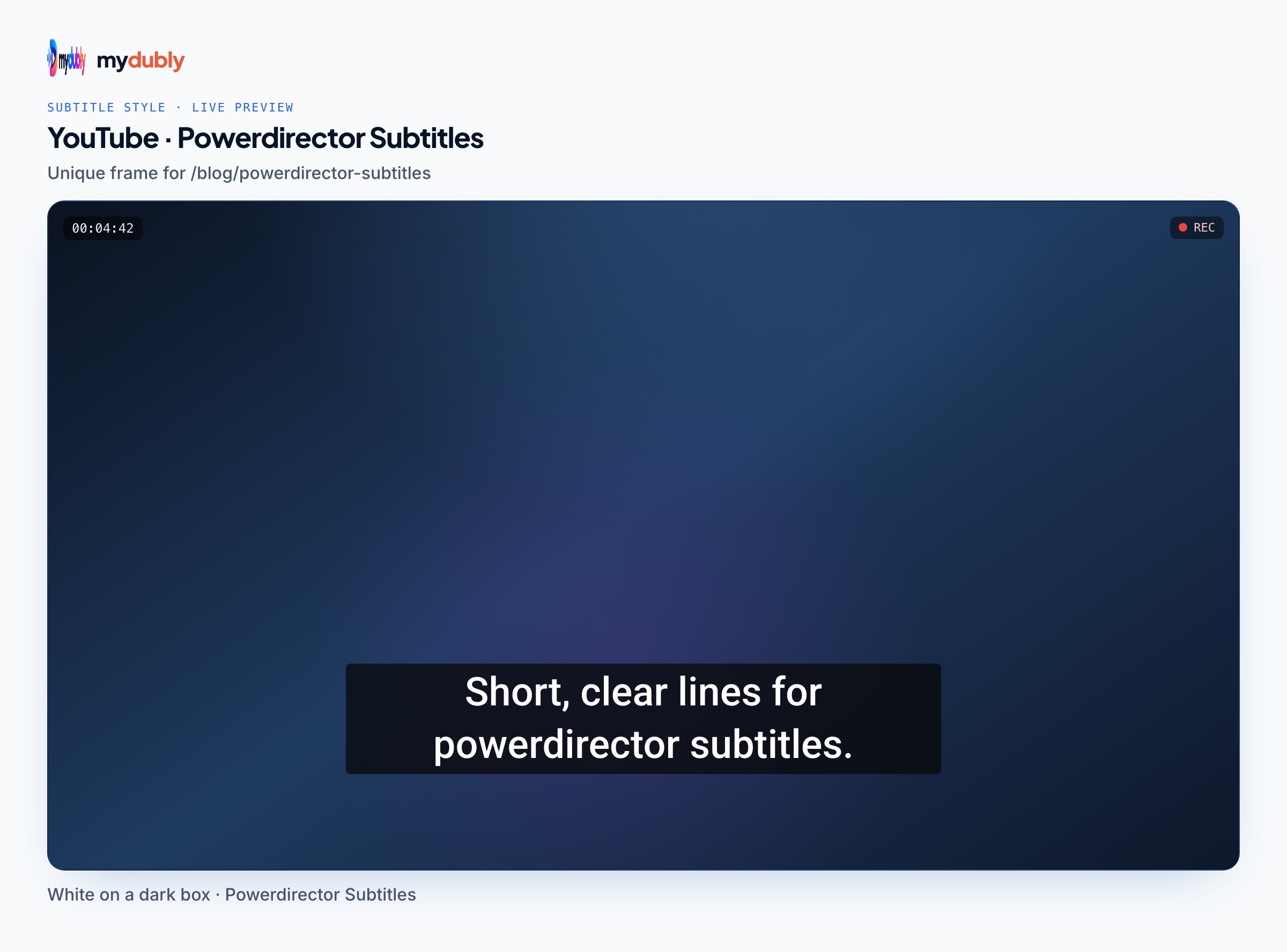
- Put the final edit on the timeline. SRT times are measured from the start of the project, so trim, reorder and add intros before importing, not after.
- Open the Subtitles Room.
- Choose the option to import subtitles from a file (in recent versions it sits with the other buttons above the subtitle list; hover over the icons to see their names).
- Select your .srt. PowerDirector creates one subtitle entry per cue and places them on the subtitle track.
- Compare the list with the timeline: the first entry's start time should match the first spoken words, and the last entry should end near the last ones.
- Watch the opening, a section from the middle, and the last minute before you style anything.
- Adjust the text format (covered below), then produce the video or export the subtitles.
The office records a 22-minute homily in Spanish and wants English subtitles for younger members. A volunteer makes an English SRT from the exported video, opens the Subtitles Room in PowerDirector 365 and imports it. Playback shows the subtitles are a second late everywhere because the welcome slide was lengthened, so the volunteer shifts the file by one second and imports it again.
When the timing is off
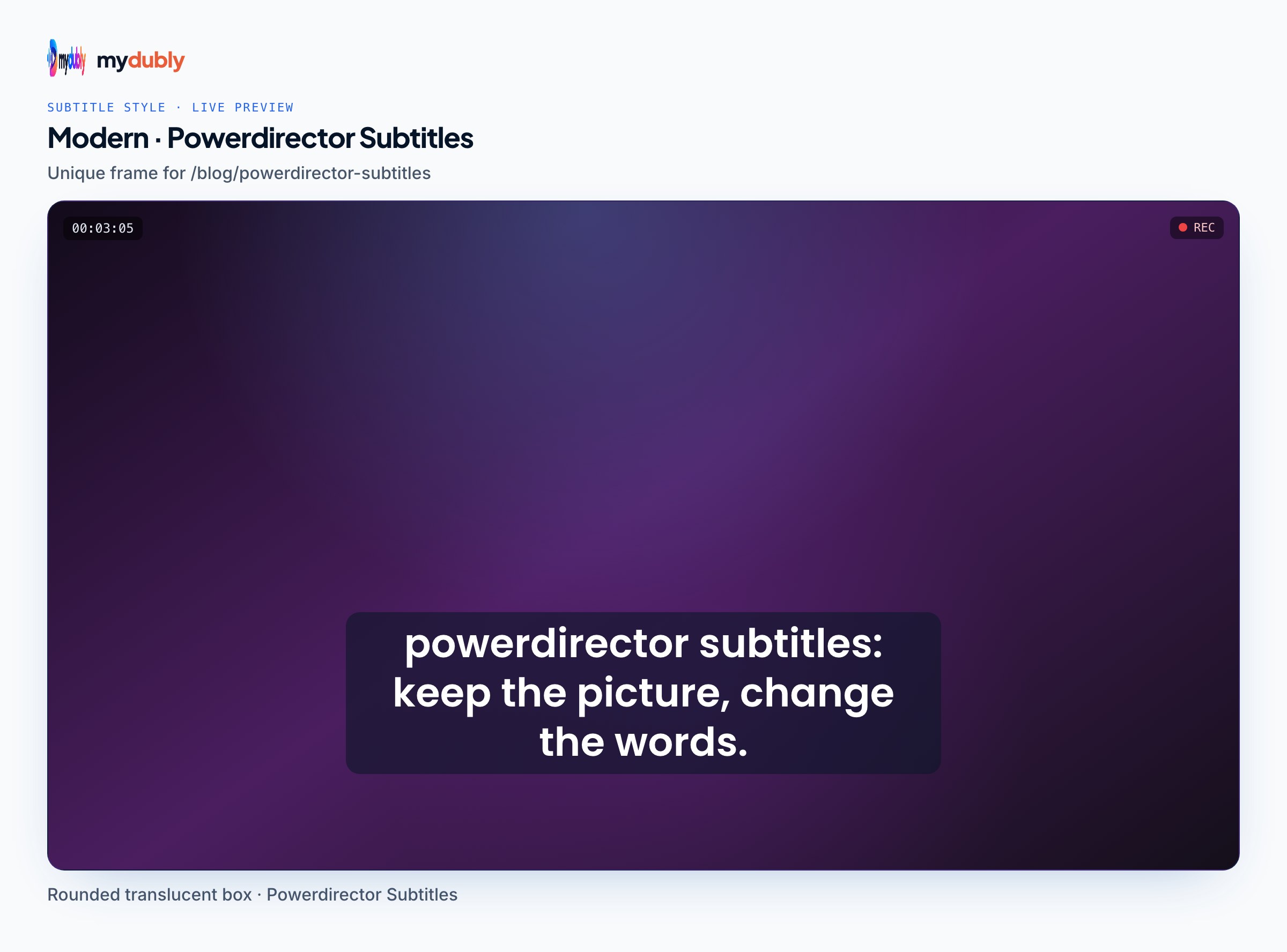
A constant delay (every line equally early or late) usually means something was added or removed at the start of the timeline after the SRT was made. Shift every cue by the same amount; the free subtitle timing adjuster does that in the browser, and you re-import the corrected file. Changing hundreds of entries by hand in the Subtitles Room list works for a handful of lines, not for a whole talk.
A delay that grows as the video plays means the SRT and the timeline aren't the same edit. The reliable fix is to export the finished video and make the subtitles again from that export.
Styling imported subtitles
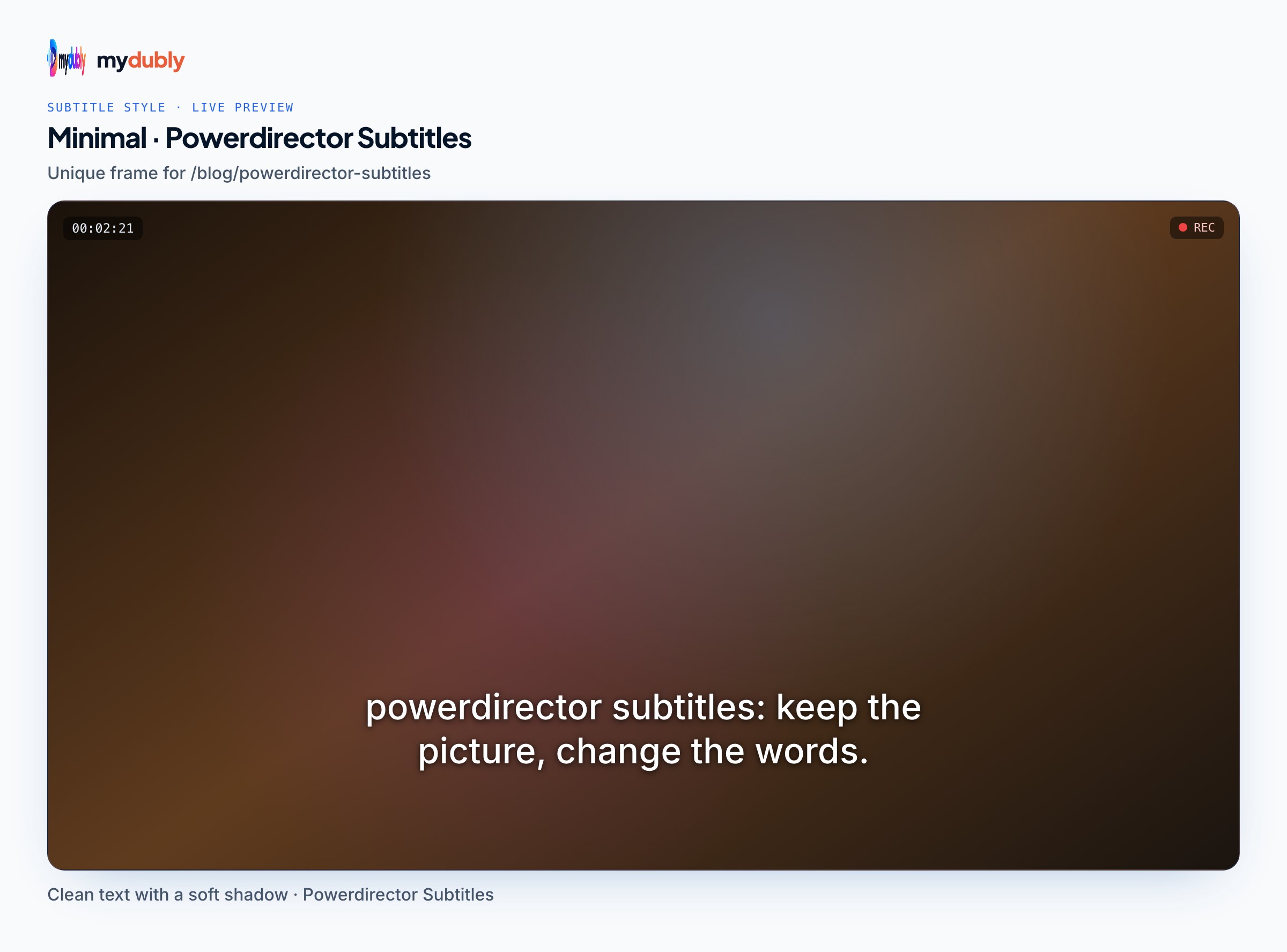
The Subtitles Room has a text format setting for subtitles: font, size, colour, shadow and border, and the position on screen. Imported SRT lines arrive as plain text, so PowerDirector's formatting is what viewers see. Keep these in mind when you set it:
- Pick a size that survives a phone screen; a size that looks large on a 27-inch monitor is often too small on a phone.
- Use a border or shadow. White text without one disappears over sky, snow and bright walls.
- Very long cues wrap into three lines and cover faces. Subtitle readability explains line length and reading speed if you want to tidy cues before importing.
- Keep subtitles away from lower-third titles you added in the Titles Room, or move one of them.
AI Speech to Text and when it costs credits

PowerDirector also creates subtitles from the audio. CyberLink's steps are: select a clip or range on the timeline, open the Subtitles Room, choose AI Speech to Text, tick "Transcribe selected range only" if you want just that part, and click Create.
CyberLink's support page dates the switch to credits by version:
- PowerDirector 365 for Windows
- Credit-based since August 2024, when a new engine added languages.
- PowerDirector 365 for Mac
- Credit-based since July 2025.
- PowerDirector 2027 Ultimate and Ultra
- Credit-based since September 2026.
The same page lists the transcription languages: English, Traditional Chinese, Japanese, Spanish, German, French, Italian, Korean and Portuguese on PowerDirector 2027 and 365 for Windows and on the Mac version, and only English, Traditional Chinese and Japanese on the 2024 to 2026 perpetual Windows versions. If your video is in Hindi, Arabic, Russian, Turkish, Dutch or Polish, built-in transcription isn't on that list at all, which makes an imported SRT the practical route.
Making the SRT outside PowerDirector

The mydubly subtitle generator makes SRT and VTT files from a video's speech in 100 languages and can translate the subtitles from the audio into any of 21 languages. You open the exported video in the browser; the video stays on your computer, only its audio track is uploaded, and that audio is deleted within 30 minutes of the job finishing. It costs 5 credits per minute with a minimum of 5 credits per file: the 22-minute homily above costs 22 credits (2.2¢). New accounts get 240 free credits, and registered accounts get 10 more each day.
For a Hindi family video or lecture, the Hindi subtitle generator produces Hindi subtitles from Hindi speech, and the same upload can produce English subtitles instead. Each language is its own SRT, so you import each one separately.
If someone has typed the subtitles as plain text without times (a script, or notes from a meeting), turn them into a timed SRT with the TXT to SRT converter rather than setting PowerDirector markers one by one. It estimates times from reading speed, so expect to nudge a few lines afterwards.
A videographer edits a 40-minute wedding film in PowerDirector 2026, whose built-in transcription covers English, Traditional Chinese and Japanese only. The speeches are in Hindi and English. He makes an English SRT for relatives in Canada, imports it in the Subtitles Room, and sets a larger font with a dark border because the reception footage is bright.
Reviewing a long SRT before import
For long videos, proofreading inside the Subtitles Room list is slow. Converting the SRT to a Word table with the SRT to Word converter gives a reviewer a document with numbers, times and text in columns, plus an empty column for corrections. Apply the fixes to the SRT, then import once. Every edit made inside PowerDirector instead lives only in that project, unless you export the subtitles again.
Producing the video: burned in or a separate file
When you produce a video with subtitles on the timeline, they're rendered into the picture: they show in every player and can't be switched off. That suits Instagram, WhatsApp and presentations. For YouTube or a course platform that accepts caption files, upload the video without subtitles and add the SRT separately so viewers can turn them on or off. If you edited lines inside the Subtitles Room, use its export option to save them as a new SRT; otherwise you'll upload the old, uncorrected file.
If PowerDirector isn't part of the job at all (the video is already finished), the free mydubly subtitle editor opens an MP4, MOV, WebM, MKV or M4V in the browser, imports SRT or VTT, and renders an MP4 with the subtitles burned in. Rendering needs a desktop browser such as recent Chrome, Edge, Safari or Firefox.
Limits and honest caveats
- mydubly subtitles have no speaker names and come as one line per cue; long cues need splitting for small screens.
- mydubly doesn't translate an SRT you already have; translated subtitles are made from the video's audio.
- Feature names in PowerDirector move between versions and between Windows and Mac; the Subtitles Room itself has been stable for many releases.
- PowerDirector's subtitle styling applies to text in the subtitle track; animated word-by-word captions are a different feature and aren't part of an SRT.
Frequently asked questions
Which PowerDirector editions can import SRT files?
CyberLink's edition comparison lists SRT import in the Subtitles Room across current editions. Feature charts change between releases, so confirm on the chart for your edition and year.
Why do TXT subtitles need markers in PowerDirector?
A TXT file has no times, so PowerDirector can't know when each line starts. SRT files carry start and end times, so the entries are created automatically.
Does PowerDirector AI Speech to Text use credits?
On PowerDirector 365 for Windows since August 2024, 365 for Mac since July 2025, and 2027 Ultimate and Ultra since September 2026, according to CyberLink. The feature window has a Get Credits button if you run short.
Can PowerDirector transcribe Hindi or Arabic speech?
Hindi and Arabic aren't in CyberLink's language list for AI Speech to Text. Make the SRT elsewhere and import it into the Subtitles Room.
How do I save corrected subtitles out of PowerDirector?
Use the Subtitles Room's export option to write the current entries to an SRT, then upload that file to YouTube or your course platform.
How do I make PowerDirector videos in two subtitle languages?
Save one copy of the project per language and import that language's SRT into each copy. Each produced video then carries a single language, with no risk of two sets of lines overlapping.