What Moodle needs
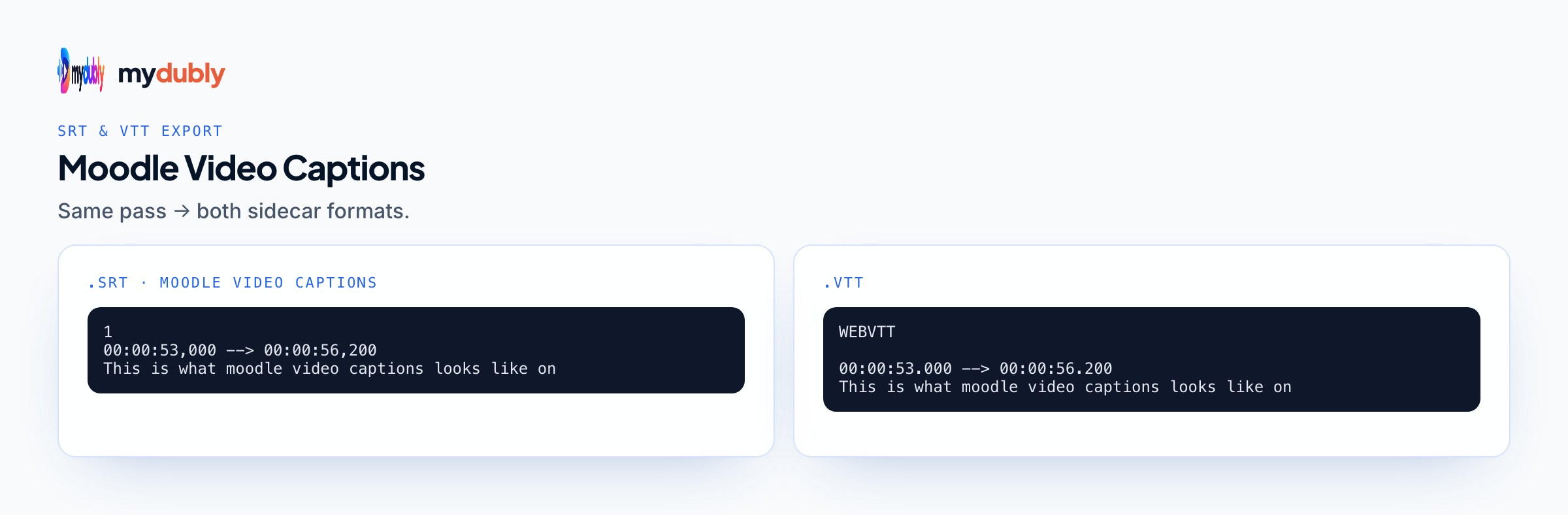
Moodle plays embedded video in its own media player (VideoJS on standard sites, through the Multimedia plugins filter), and that player reads caption tracks in WebVTT format. Moodle's Video documentation describes the Subtitles and captions section as accepting subtitle files in different languages plus captions, descriptions, chapters and metadata tracks, all as WebVTT.
- File format
- WebVTT (.vtt). SRT isn't listed; convert SRT files first.
- Where
- The editor's media dialog, Video tab, Subtitles and captions section.
- Languages
- Several tracks per video, each with its own language.
- Track storage
- Uploaded to Moodle. Tracks linked from elsewhere won't display.
- Automatic captions
- Not part of Moodle core's video embedding; available through plugins or your institution's video platform, if at all.
- File size
- Governed by your site's upload limit, which administrators set.
Moodle's own news blog says Moodle "allows you to create subtitles and closed captions automatically", while the Video documentation points teachers to external software or YouTube's automatic captions. In practice, automatic captioning in Moodle depends on what your site has installed, so ask your learning technology team before assuming it exists.
Step by step: add a captioned video to a Moodle page
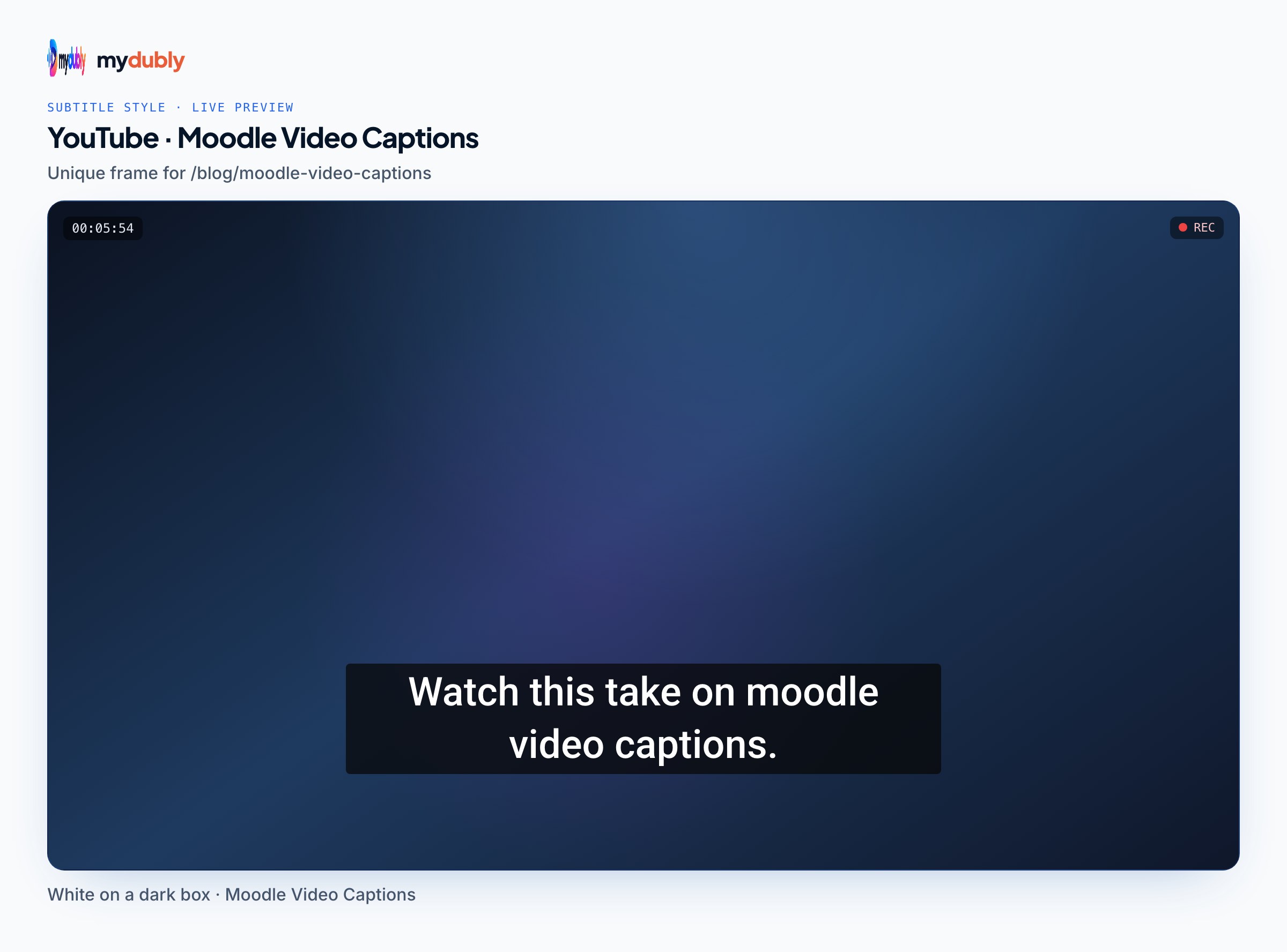
- Make the WebVTT file from the same video you'll upload (details in the next section). Name it clearly, for example week3-lab-safety.en.vtt.
- In your course, turn editing on and open the place the video will live: a Page resource, a Label, a section summary or an assignment description, anywhere the text editor appears.
- Click the media button in the editor toolbar to open the media dialog, and choose the Video tab.
- Use Browse repositories to upload your MP4. If you have the same video in a second format, Add alternative source helps it play on more devices.
- Expand Subtitles and captions, upload your .vtt, and set the language and label the player should show.
- Add more tracks the same way, one per language.
- Click Insert media. The video appears as a blue link in the editor until you save.
- Save, open the page as a student would see it (or switch role to student) and check that the captions button lists every language.
The dialog looks a little different between Moodle versions and between the older Atto editor and TinyMCE, which newer sites use, but the Video tab and the Subtitles and captions section are in both.
Making the VTT with mydubly
The subtitle generator turns a lecture recording into VTT and SRT files from the audio. It works in 100 spoken languages and can translate into any of them, one output language per run, so a lecture in English can become an English VTT plus a Spanish or Arabic one. The video stays on your computer; only the audio track is uploaded, processed, and deleted within 30 minutes of the job finishing.
The price is 5 credits per minute, minimum 25 credits per file, at 1,000 credits per dollar:
- 50-minute recorded lecture
- 250 credits (25¢) per language
- 12-week module, two 45-minute lectures a week
- 1,080 credits ($1.08) per language
- 4-minute lab demonstration
- 5 credits (0.5¢), the per-file minimum
New accounts start with 240 free credits, and registered accounts get 10 free credits a day. For audio-only resources, which Moodle can also caption with WebVTT, audio to SRT covers the same workflow from an MP3 or M4A.
If you already have SRT files from another tool, you don't need to regenerate them; converting SRT to VTT shows the small changes involved.
A lecturer in Izmir teaches microeconomics in English to first-year students whose first language is Turkish. She embeds each lecture recording in a weekly Page with two tracks: English captions for reading along, and Turkish subtitles for students who are still building academic English. Students switch between them in the player.
A chemistry department records a safety walkthrough. The technician generates the English VTT, corrects every chemical name and hazard code against the script in the subtitle editor, and only then uploads it, because a wrong concentration on screen is a safety problem, not a typo.
Check the file before students rely on it
AI captions are a first draft. Before uploading:
- Correct names, formulas, units and course-specific terms.
- Split long cues so captions don't cover diagrams. mydubly writes one line per cue without a fixed length limit; the free subtitle editor imports the VTT with the video, warns about lines over 42 characters and fast reading speeds, and exports a corrected VTT.
- Save as UTF-8, so accented letters and non-Latin scripts display correctly.
- Add speaker names and relevant sounds if the video is used as an accessibility accommodation. Automatic files contain speech only. WCAG caption requirements explains what accessible captions include.
Common reasons Moodle captions don't show
- The track was added by URL instead of uploaded. Moodle's documentation is explicit that linked files won't display.
- The file is SRT renamed to .vtt. The first line must read WEBVTT, and timestamps use a full stop before milliseconds.
- The video was added as a File resource. A file resource serves the video on its own, without the tracks you'd attach in the media dialog; embed it in a Page through the editor instead.
- The Multimedia plugins filter is turned off for the course or site, so the player that reads tracks isn't used. Ask an administrator.
- The video is embedded from YouTube or Vimeo. Their players use the captions stored on those platforms, not a VTT you attach in Moodle.
H5P and institutional video platforms
H5P Interactive Video has its own setting for text tracks, and university guides describe uploading a .vtt there with the type set to subtitles. If you build interactive videos in H5P, attach the VTT in H5P's editor rather than in Moodle's media dialog.
Many universities don't store video in Moodle at all. They use a platform such as Panopto, Kaltura or Echo360 and embed it in Moodle, in which case captions live in that platform. The Panopto captions guide covers uploading files there, and the Canvas captions guide covers the equivalent for Canvas.
What mydubly doesn't do here
It doesn't connect to Moodle or import a video from a Moodle or YouTube link; you work from the file. It translates from the audio, not from an existing VTT. It doesn't add speaker labels or describe sounds. And for live classes, it can't caption in real time: record first, caption afterwards. For more on captioning lectures generally, see lecture video captions.
Frequently asked questions
What caption format does Moodle accept for videos?
WebVTT (.vtt). Moodle's media dialog takes WebVTT files for subtitles, captions, descriptions, chapters and metadata; convert SRT files before uploading.
Why don't my Moodle captions appear?
The most common cause is a caption track linked from another site; Moodle only displays tracks uploaded to Moodle. Also check the file starts with WEBVTT and the Multimedia plugins filter is on.
Can one Moodle video have subtitles in several languages?
Yes. Add one WebVTT file per language in the Subtitles and captions section of the media dialog, and students choose the language in the player.
Does Moodle generate captions automatically?
Not in core video embedding. Automatic captions come from plugins or institutional video platforms your site may have, so check with your administrators.
Can I caption audio files in Moodle too?
Yes. Moodle's audio embedding has the same Subtitles and captions section and also uses WebVTT.
How do I add subtitles to an H5P Interactive Video?
Use H5P's own text-track setting in the Interactive Video editor and upload a .vtt there, set as subtitles, rather than Moodle's media dialog.