The job this audio does
Tutorial VO fails when step four becomes step fourteen or a menu name turns into a verb. Paste your steps in order. No screen recording is uploaded here—only text becomes speech. Style angle, not a translation-of-course duplicate. tutorial voiceover AI focuses on Clear, News, Calm, or Low professional delivery for scripts already in the language you want heard. It is not a silent stand-in for course-script or slide-narration translation landings when language change is the real job. Paste module or talk-track copy, generate M4A, and place it in your LMS, deck, or NLE yourself for tutorial voiceover ai workflows. A practical tutorial voiceover ai workflow looks like this: lock a house voice (Clear, News, Calm, or Low), paste one module or talk track, generate, scrub every unit and obligation verb, then import M4A into the LMS, deck, or NLE. Document the voice id for collaborators so module five matches module one. When the job is translating lesson or slide copy into another spoken language, switch to the dedicated translation landings rather than stretching this style page. No SCORM import, no PA push, no lip-sync — speech you place yourself for tutorial voiceover AI.
Clear delivery without drama
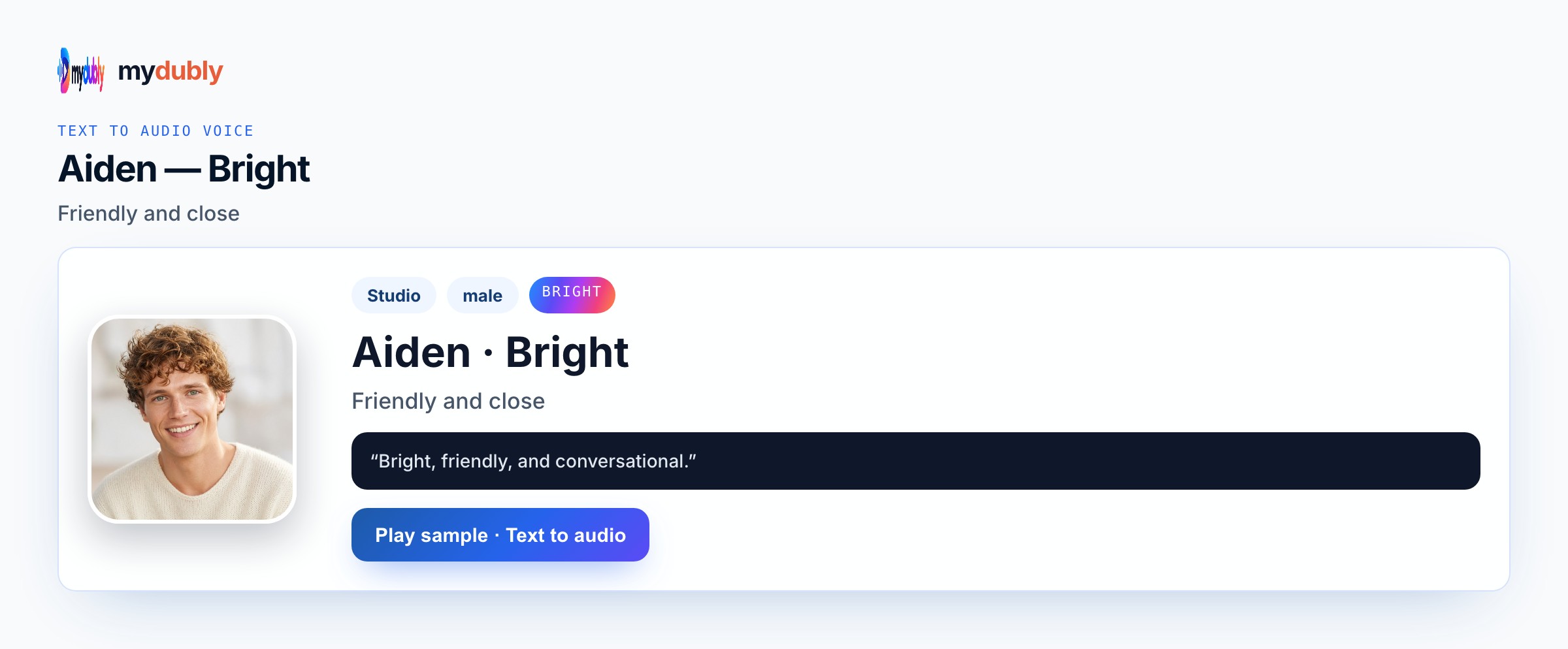
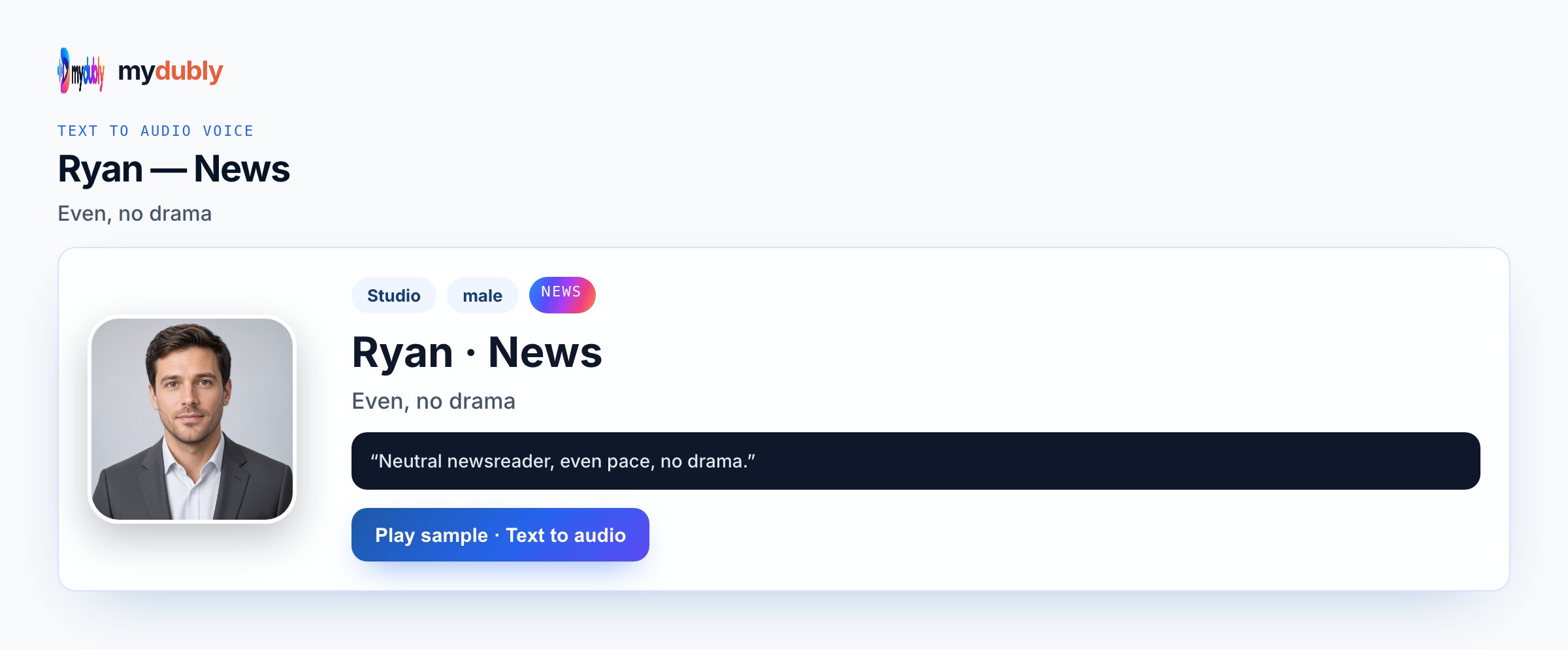
Ryan Clear for instructional clarity. Aiden Bright for friendlier creator tutorials. Ryan News for sober enterprise walkthroughs. Conversation mode can add a second “tip” voice if you truly need two speakers. On Tutorial Voiceover AI, Ryan Clear and News keep terms exact; Calm softens wellbeing modules; Uncle Fu carries grave policy tone. Quote UI labels. Avoid Energetic or Angry unless the script truly needs them. Conversation mode can split teacher and example lines. tutorial voiceover AI should sound instructional, not theatrical. Editors working on tutorial voiceover ai should keep a simple checklist: Speak in correct, voice id locked, fragile tokens isolated, M4A named with the episode or Reel date, and a note of which lines were re-spoken after legal review.
Example wording
"Step one. Open settings." "Step two. Choose the text to audio tab." "Step three. Paste your script and select Speak in."
"Say the unit aloud in the script."
"Keep must and never on their own lines."
"One module paste, one cleaner retake."
Teams that ship this
Tutorial voiceover AI helps SaaS educators and how-to creators who need Clear or Bright step narration without a mic setup. Ryan Clear keeps step numbers ordered; Bright fits friendlier creator tutorials; News fits sober enterprise walkthroughs. Creators download M4A for tutorial timelines. Conversation mode can add a second tip voice if you truly need two speakers. Style angle, not a translation-of-course duplicate. Dubbing credits apply. Tutorial Voiceover AI users who already locked picture still benefit from one M4A they can duck under B-roll, slides, or soft beds they own — Conversation mode only when a second speaker must contrast.
Produce the reading
Paste numbered steps, choose Clear or Bright, set Speak in, and generate. Scrub every step number and menu label. Repair failures and speak the script again. Download the M4A for your tutorial timeline. Generate Tutorial Voiceover AI, scrub units and obligations, re-speak bad lines, and import M4A into your authoring tool or NLE. One module or talk track per job keeps retakes sane. Do not expect SCORM import, PA push, or lip-sync. Translation-centered jobs belong on the dedicated spoken-translation pages, not this tutorial voiceover ai style angle. Name the downloaded file with the episode, Reel, or module id so collaborators can find the Tutorial Voiceover AI take later.
Training audio mistakes
Expecting the voice to see your screen recording is false. Scrambling step numbers in the paste still speaks the wrong order. Using Energetic on precise menu walks can smear labels. Confusing this with course translation is the wrong job. Music and cursor SFX stay in your editor. Running each step as its own job burns the minimum. Inventing auto music beds, lip-sync, or platform auto-post for this job will disappoint — mydubly returns spoken audio you place yourself. Skipping a headphone scrub on names, numbers, and claims forces full re-speaks later when a single editor fix would have been enough.
After you listen
One idea per step line. Spell UI labels exactly. Watch the two-minute minimum on very short tips. For tutorial VO, number steps explicitly, spell menu labels exactly, and re-speak any step that jumped from four to fourteen on first listen. When you publish tutorial voiceover AI audio, credit rules and acceptable-use still apply: original wording or cleared rights, no celebrity impersonation packs, and no claim that mydubly supplied music or lip-sync it did not generate.
Using the tool on this page
- Paste the text. The language it is written in is read from the words. Set the language it should be spoken in. The same language speaks the words as written.
- Studio and Mood voices play a short sample in Chinese, English, French, German, Italian, Japanese, Korean, Portuguese, Russian and Spanish. Hindi, Arabic, Turkish, Polish, Dutch, Swedish, Norwegian, Finnish and Hebrew need a recording of 3 to 15 seconds from someone you have permission to copy. A longer sample keeps the first 12 seconds.
- The reading is priced like a video dub: 120 credits per minute (12¢), minimum 2 minutes per file. A short paragraph still meets the 2-minute minimum.
- When it finishes, the reading stays on this page. Edit the script and speak it again: that is a new reading of the whole script at the same dubbing price, including the 2-minute minimum. Download the audio. Files stay 120 minutes. A video dub is a different job and opens in the dub editor. More is on the text to audio dubbing tool page.
Frequently asked questions
Can the tutorial voice see my screen recording?
No. Paste the words. Picture stays in your editor.
Where do I open tutorial voiceover ai?
On this page, or from the Text to Audio tab on the mydubly home page. The finished job opens in the text editor so you can change a line or a voice and speak the script again.
What file do I get from Tutorial Voiceover AI?
An M4A speech file under dubbing credits, including the two-minute minimum on short pastes. Picture, music, captions, and posting stay in your own tools.