What Canva's captions actually do
Canva has two caption features, and they behave differently:
- Editable captions
- Generated from speech inside a video design. You can edit the text and timing, restyle them, and they are burned into the MP4 when you download.
- View-only captions
- An accessibility setting (File, then Accessibility, then Show view-only captions on media, or a toggle in your account settings) that shows auto-generated captions while you or a viewer watches inside Canva. They are not part of the downloaded file.
If you want words in the video you post to Instagram, TikTok or a website, you need editable captions. The rest of this article is about those.
How to add subtitles in Canva step by step
Canva's help centre describes this flow on desktop:
- Check the design type: it must be a video or social media design (or a design with supported audio such as MP3, M4A, OGG, WAV or WEBM). The type is shown under the design name in the File menu.
- Upload the video and wait until it has fully uploaded. The clip has to contain speech.
- Select the video on the page. Then go to Text and choose Captions under Dynamic text, or open Apps and search for Captions, or select Captions in the toolbar.
- Choose a caption style pack. Packs bundle a font, colours and an animation, and the style you choose applies to all captions in the video.
- If the design has several videos, use the Apply captions to dropdown to leave some out.
- Select Generate captions, then read through the result and fix wrong words and timing in the captions panel.
- Download the design as MP4. The captions are part of the picture in that file.
Canva detects the spoken language automatically. If it guesses wrong (common with short clips, strong accents or a mix of languages), delete the captions, select the correct spoken language and generate again. Fixing words one by one on top of a wrong-language transcript wastes time.
A studio manager makes a 40-second vertical teaser from a class recording. Canva detects the instructor's English, she picks an animated style pack, corrects "chaturanga" where the captions misheard it, and downloads the MP4 for Instagram.
Languages and style packs
Canva's caption language list is long and includes several languages mydubly doesn't offer, such as Tamil, Marathi, Kannada, Urdu and Thai. If your video is in one of those, Canva's own captions are the route. Canva has also said its style packs launched in English, Spanish, Portuguese, French, Indonesian and German; in other interface languages the presets may be missing, though captions still generate. Brand Kit settings can hide packs that don't match your brand.
On price, Canva's subtitles feature page presents captions from speech as free, with brand-font conveniences on paid plans. Plans change, so if a style shows a crown icon in your account, it's a paid one.
Canva SRT: import and export
Canva's documented download formats for designs don't include a subtitle file, and its captions help only describes downloading captions as part of an MP4. Its import documentation doesn't list SRT or VTT either. In practice:
- You can't hand Canva a finished SRT and have it become editable captions.
- You can't download Canva's captions as an SRT or VTT for YouTube, LinkedIn, Vimeo or a learning platform.
- Third-party apps in Canva's Apps Marketplace come and go; check what they do with your file before relying on one.
Getting an SRT or VTT for a Canva video
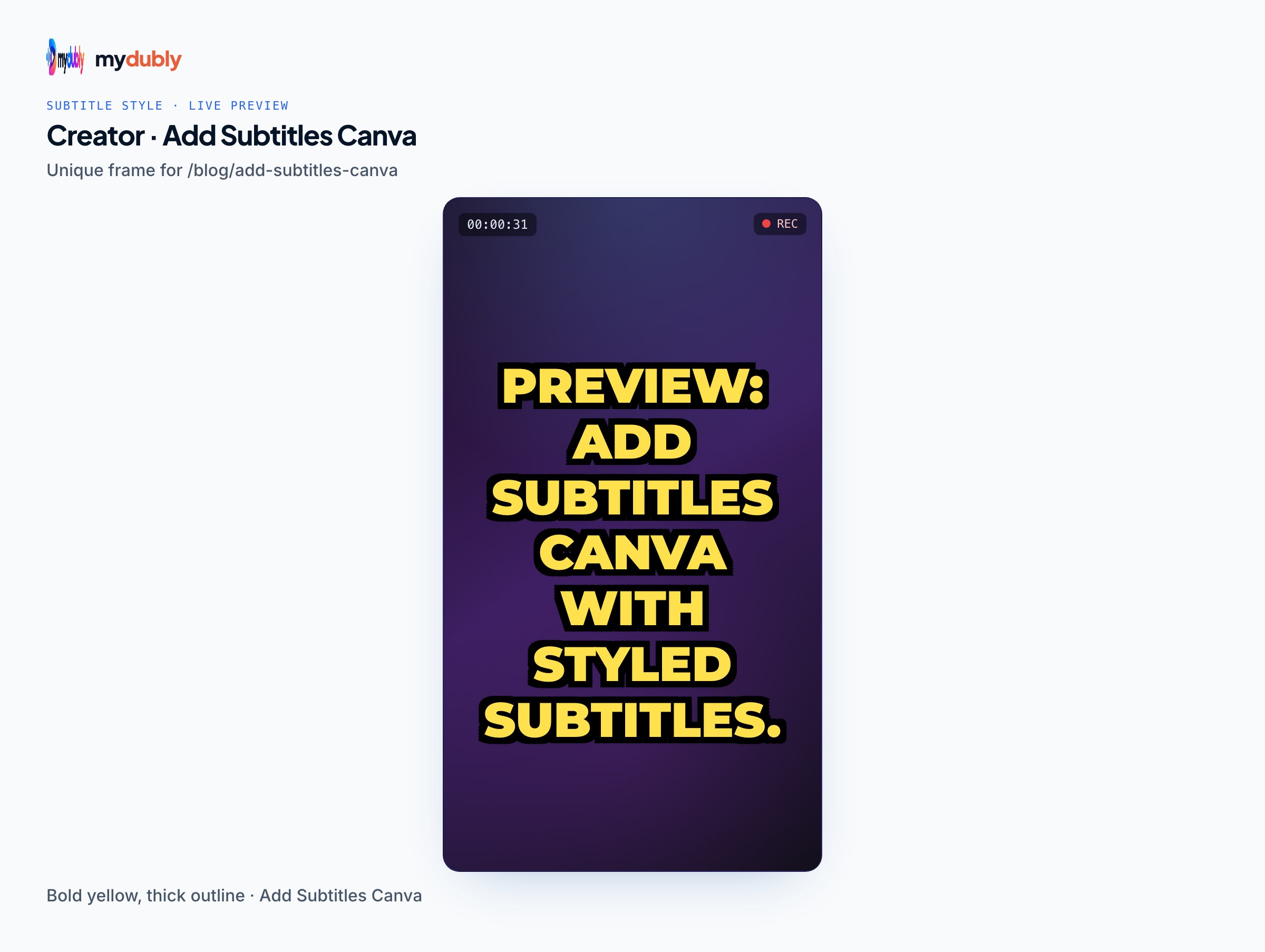
Platforms such as YouTube and LinkedIn index and display a separate caption file better than burned-in text, and viewers can switch it off. Make the file from the video Canva exports:
- In Canva, download the video as MP4 without editable captions (delete them or don't generate them), so the platform's captions don't sit on top of burned-in text.
- Upload the MP4 to the subtitle generator, choose the spoken language and download SRT and VTT. Only the audio track is uploaded; the video stays on your device. Cost is 5 credits per minute with a 25-credit minimum per file, so a 12-minute webinar clip is 12 credits (1.2¢).
- Upload the video and the SRT together to the platform. Uploading subtitles to YouTube and adding captions to LinkedIn videos cover where the upload button is on each.
If you also want captions visible in Canva previews for your team, generate Canva's own captions on a copy of the design.
Translated subtitles in a Canva video
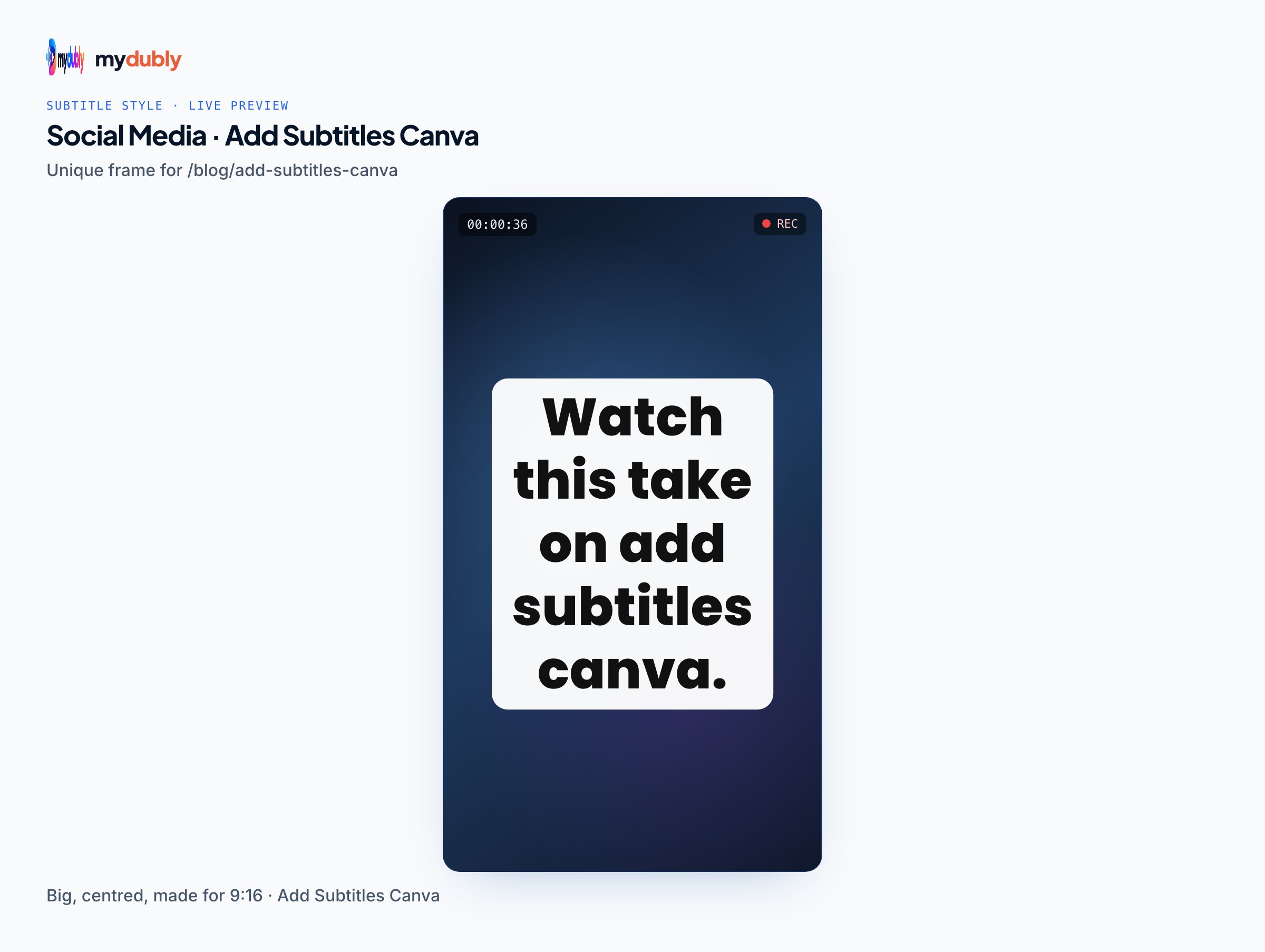
Canva transcribes the spoken language. To show Spanish subtitles on an English video, or English on a Hindi one, the subtitles have to come from outside Canva and be burned into the video. There are two orders, depending on where you want to finish:
Finish in Canva (you still need to add slides, music or a logo after the subtitles):
- Export the talking-head or recording as MP4 from Canva or straight from your camera.
- Generate translated subtitles from its audio with the subtitle generator, choosing the target language.
- Open the MP4 in the free subtitle editor, turn off the AI switch, import the translated SRT, pick a style and render an MP4 with the subtitles burned in.
- Upload that MP4 to Canva as media and build the rest of the design around it. Don't generate Canva captions for this clip.
Finish outside Canva (the design is done):
- Download the finished design from Canva as MP4.
- Generate translated subtitles from it and burn them in with the subtitle editor.
- Publish the rendered MP4.
The second order is safer when the design has text overlays: you can see where they sit and move the subtitles with the position setting and nudge, or check the "Show safe area" guide for 9:16 and 4:5 before rendering. The TikTok safe zone shows which parts of a vertical frame the app's buttons cover.
A school designs a 60-second English promo in Canva and downloads the MP4. For Spanish and Japanese versions, the marketing assistant runs the MP4 through the subtitle generator twice, 5 credits (0.5¢) each because of the per-file minimum, burns each SRT into its own copy with the subtitle editor, and posts three versions.
Things that go wrong
- Captions in the wrong language: delete and regenerate with the spoken language set by hand.
- Captions missing from the export: you used view-only captions, or downloaded as GIF or an image format. Editable captions plus MP4 is the combination that keeps them.
- Double subtitles: you generated Canva captions on a clip that already has burned-in subtitles. Burned text can't be removed from the picture, so use the clean original.
- Long lines on vertical video: subtitles burned in from an SRT show each cue in full, and a long cue can cover a third of a 9:16 frame. Keep cues to two short lines; subtitle segmentation explains where to break.
- Translated subtitles that don't match the edit: always make the subtitles from the final export, not from an earlier draft.
Where each tool fits
The mydubly subtitle editor uses one style for the whole video and has no word-by-word animated captions, so for an animated caption look on a same-language Reel, Canva's style packs are the tool to use. For translations, sidecar files and long recordings (up to 2 hours), use mydubly to make the file, then burn it in or upload it.
Frequently asked questions
Can I import an SRT file into Canva?
Canva doesn't document SRT or VTT import, so a finished subtitle file can't become editable captions. Burn the subtitles into the MP4 first and upload that video to Canva instead.
Can I download Canva captions as an SRT?
No subtitle format appears among Canva's documented downloads; captions leave Canva only as part of an MP4. Make the SRT from the exported video's audio with a subtitle generator.
Why did Canva generate captions in the wrong language?
Canva auto-detects the spoken language and can guess wrong. Delete the captions, choose the spoken language yourself and generate them again.
Are Canva captions free?
Canva's feature page presents captions from speech as free, with some brand conveniences on paid plans. Styles marked with a crown in your account are paid.
Why aren't my Canva captions in the downloaded video?
View-only accessibility captions never export. Use editable captions from Text and Dynamic text, then download as MP4 rather than GIF or an image format.
How do I put English subtitles on a Hindi video made in Canva?
Download the MP4, generate English subtitles from its Hindi audio with the subtitle generator, then burn them in with the subtitle editor and upload the result back to Canva if you need to keep designing.