Why captions matter on LinkedIn
Professional feeds are scrolled at desks, in open offices and on trains, often with the sound off. A talking-head video without captions is a silent face until someone taps for sound. Captions let the first sentence do its job. They also make the video usable for viewers who are deaf or hard of hearing, and for colleagues reading in a second language. Accessible social media videos covers the wider practice.
Uploading an SRT with your post
LinkedIn's help describes adding a caption file when you share a video from a desktop browser. The general flow:
- Start a post and add your video.
- Before posting, open the video's edit or settings option.
- Find the captions option and upload your .srt file.
- Save, preview, and post.
Menu labels on LinkedIn change from time to time, and mobile apps may not offer the upload, so if you don't see a captions option, post from a desktop browser. Upload the SRT made from the exact file you're posting, or the timings will be off.
Upload a file or burn captions in?
- SRT upload
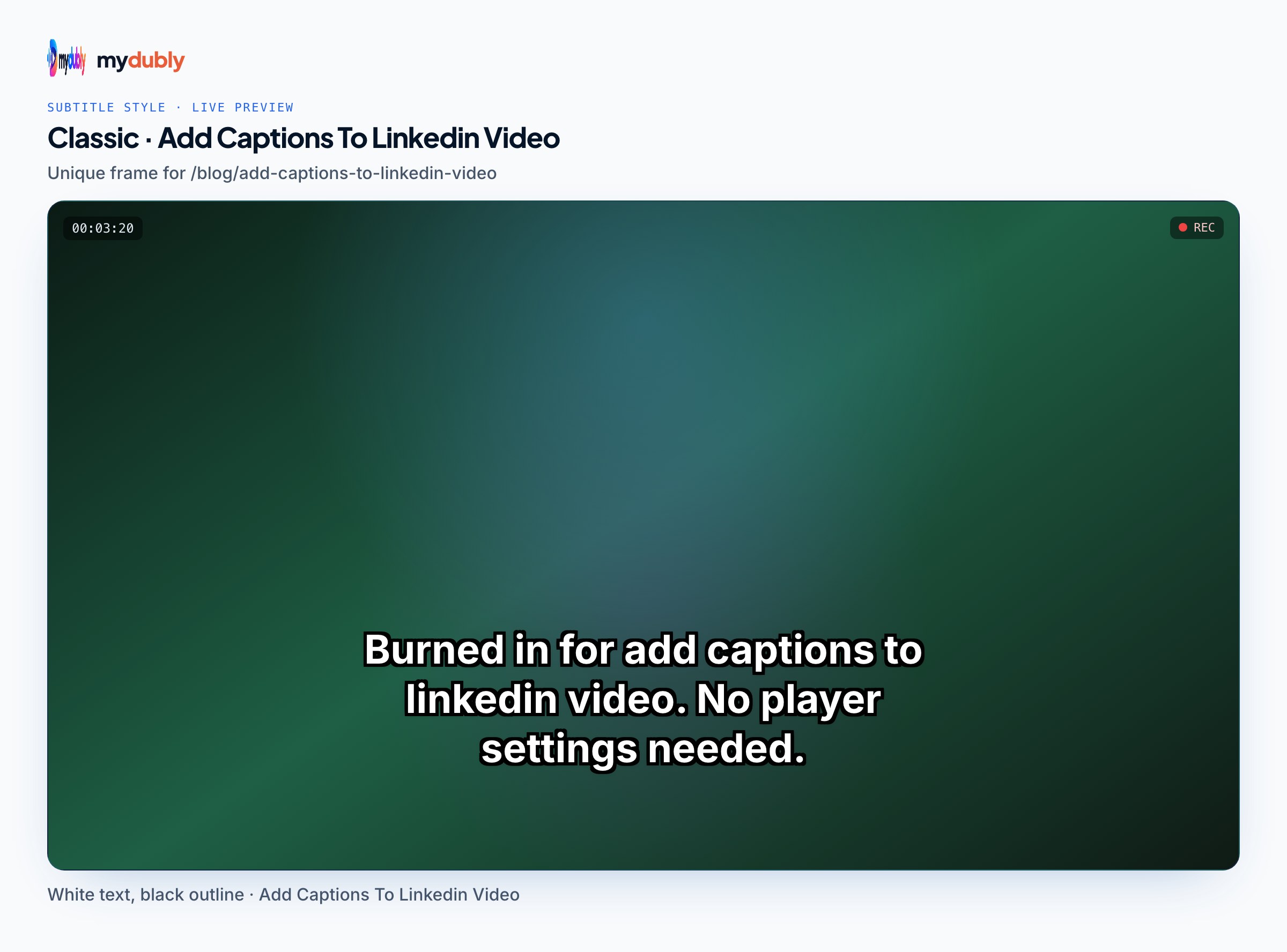
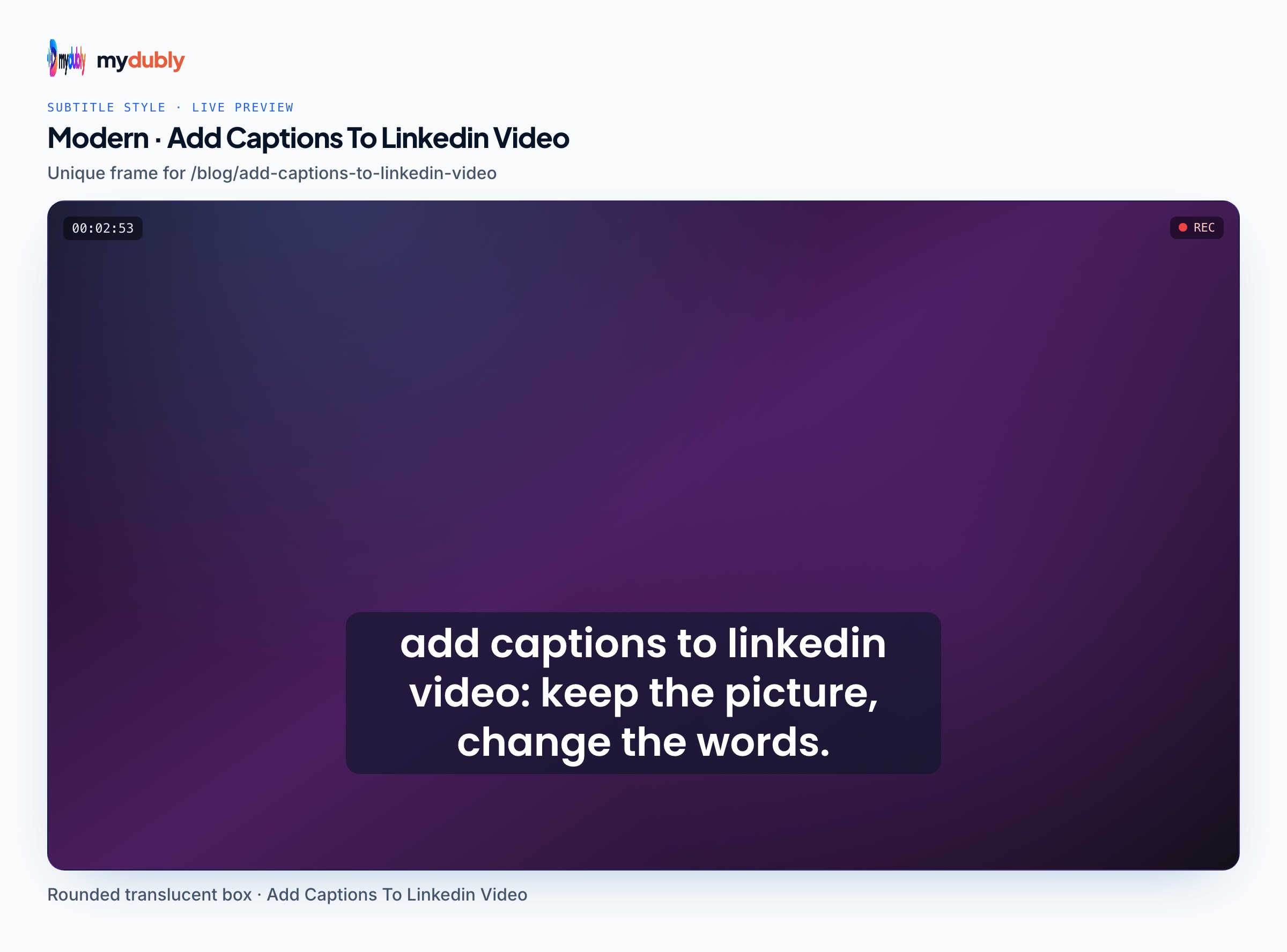
- Captions can be switched on and off, stay sharp at any size and can be replaced later. They depend on LinkedIn displaying them; some views or reshares may not.
- Burned in
- Text is part of the picture, so it always shows, in every view and if the video is downloaded or reposted elsewhere. You can't turn it off or fix a typo without re-exporting.
Many creators burn captions into short clips and upload an SRT for longer talks and webinars. Open vs closed captions explains the trade-off in general; for burning an SRT into an MP4, see adding an SRT with HandBrake.
Writing captions people actually read
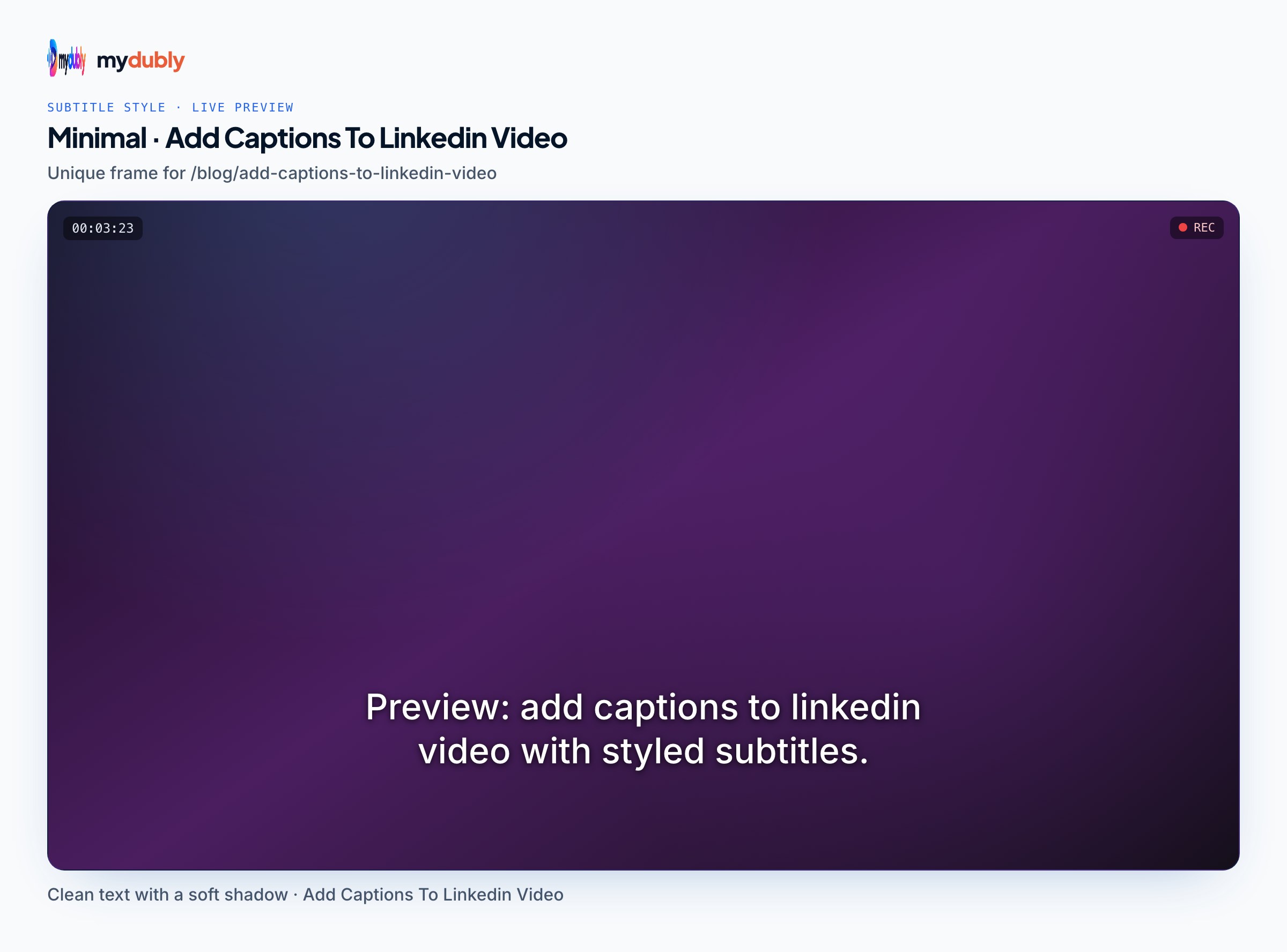
Short cues work best in a feed. Keep lines under about 40 characters where you can, split at natural phrase breaks and keep each cue on screen long enough to read. Automatic subtitles often come as one longer line per cue, so a quick pass to split them pays off. Subtitle readability gives the reading-speed numbers behind those rules.
A founder records a 90-second update on her phone. She makes an SRT from the final export, splits the three longest cues, burns the captions into a square version for the feed, and also uploads the SRT to the longer webinar recording she posts the same week.
Making the SRT with mydubly
Upload your final video to the subtitle generator. It stays on your device; only the audio is sent. You get SRT and VTT files, plus timestamped and plain transcripts, for 5 credits per minute after the 240 free credits at sign-up. For a team or audience in another country, pick a target language and get translated subtitles instead; see translated subtitles. Each run produces one language.
Limits and checks
- Check the post after publishing: play it muted on desktop and on your phone, and confirm the captions appear.
- Automatic subtitles don't include speaker names. For a panel, add names to the first line each person speaks.
- Burned-in captions on a vertical or square crop need extra margin at the bottom, where LinkedIn may overlay controls.
- Platform features change. If uploads aren't available for your account or app, burning in is the fallback.
Captions for webinars, talks and panels
Longer LinkedIn videos, such as recorded webinars, event talks and panel discussions, benefit most from an uploaded SRT: viewers skim, jump around and read along. For these, accuracy matters more than styling. Proofread names of speakers and companies, since a misspelled client name in a public post is worse than no captions. Proofreading an AI transcript describes a fast review order: names and numbers first, then a read-through for meaning.
A full transcript can also become the post itself. Pull the three strongest quotes from the transcript into the post text, with the video below; turning a video into social media posts covers that workflow, and the webinar translation page covers reaching audiences in other languages from the same recording.
Vertical, square or landscape?
LinkedIn shows several aspect ratios. If you burn captions in, place them inside the area that stays visible in the feed crop, and keep them clear of the lower edge where controls may sit. Uploaded SRT captions are positioned by the player, so you don't need to plan around the crop.
If you post the same clip to several platforms, make the captions once and reuse them: the same SRT works on YouTube, Vimeo and Facebook, and the same burned-in file works anywhere. Only re-export when a platform needs a different crop, and keep the uncaptioned master for that.
Frequently asked questions
Can I upload an SRT to a LinkedIn video?
LinkedIn's help describes adding a caption file when you post a video from a desktop browser. Look for the captions option in the video's settings before posting.
Should I burn captions into LinkedIn videos?
Burn in when you need captions to show everywhere, including reposts. Upload an SRT when you want them switchable and easy to fix.
Why don't my LinkedIn captions show?
Check that the file is a valid SRT, that it was made from the exact video posted, and that you're viewing with captions on; some views may not display uploaded captions.
How long should caption lines be for LinkedIn?
Aim for short cues of under about 40 characters per line, split at natural phrase breaks.
Can I add captions in another language?
Yes. Make a translated SRT from the same video and upload that, or burn it into a separate version for that audience.
Do I need captions on a LinkedIn video with background music only?
Not for the music, but add a short on-screen line or post text that says what the video shows, so muted viewers still get the point.