What X offers for captions
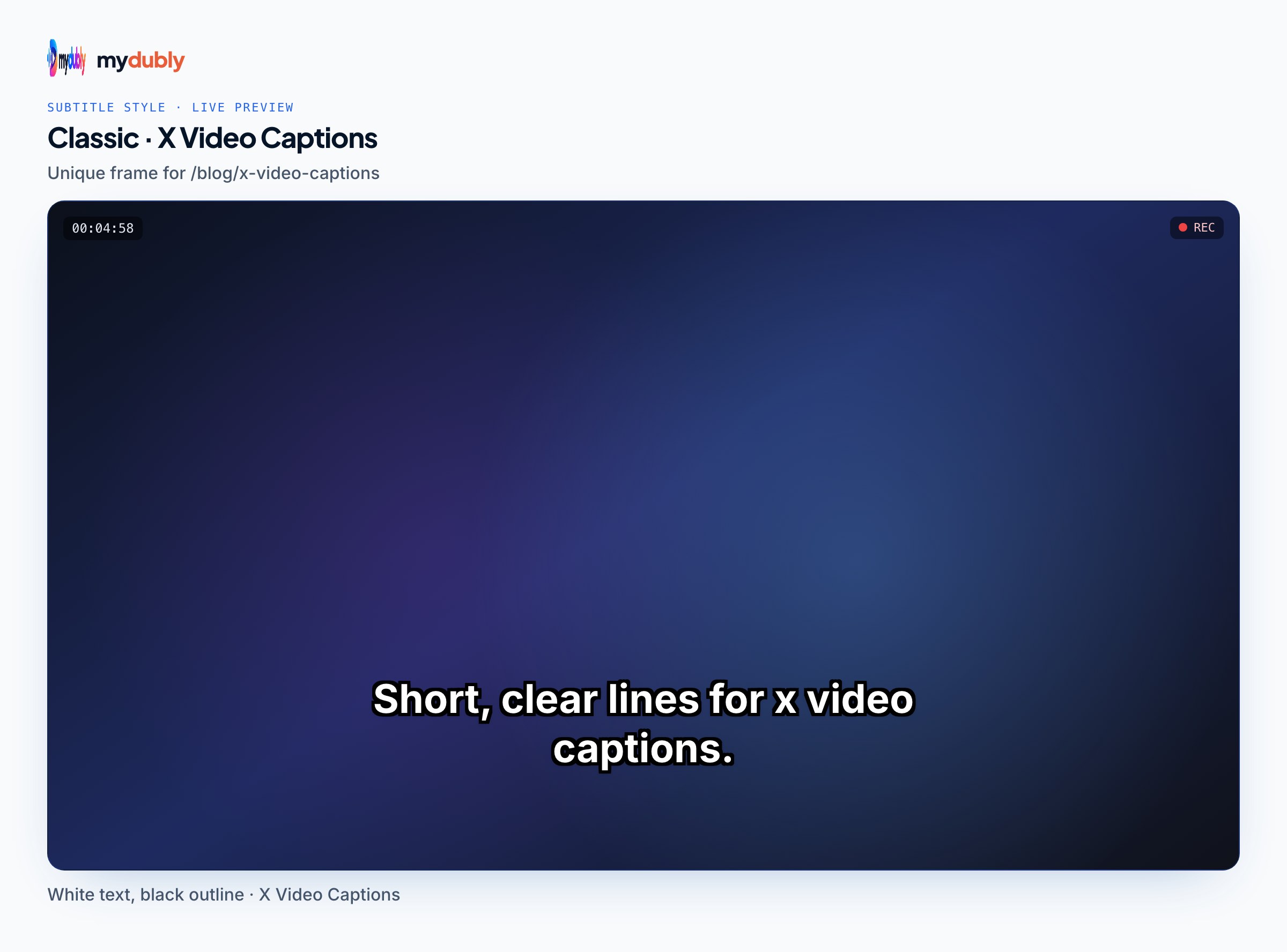
There are two kinds of captions on X, and they behave differently:
- Uploaded SRT (closed captions)
- A text file attached to the video when you post. Viewers turn it on with the CC control or have captions on in their accessibility settings. You control every word.
- Burned-in text (open captions)
- Text drawn into the video picture before you upload. Everyone sees it, including people scrolling with captions off and anyone who downloads or reposts the clip elsewhere.
Whether X also generates captions automatically is genuinely unclear. Third-party guides disagree: some say X doesn't auto-caption at all, one reports a caption generator added to the iOS and Android app in 2026, and RNID says X claims automatic captions but RNID couldn't get them to work. X's own help pages weren't reachable for this guide. Treat automatic captions as a bonus if they appear, not as your plan.
Upload SRT to Twitter from the web composer
You need a computer and a browser; the upload option isn't in the X mobile app.
- Go to x.com, sign in and start a new post.
- Attach your video and wait until it finishes uploading.
- Below the video preview, select "Upload caption file (.srt)".
- In the window that opens, select Upload captions and choose the .srt file from your computer.
- Select Done to return to the composer.
- Write your post and select Post.
- Open the published post, play the video and switch captions on to check them.
If the post shows an error after you pick the file, the SRT is usually malformed: a missing blank line between cues, a timestamp written with a full stop instead of a comma, or numbering that skips. The SRT checker flags these problems before you try again.
RNID also describes a second route for verified (subscribed) accounts: Media Studio, where you open a video from your library, choose the Subtitles tab, pick the subtitle language from a dropdown and upload the SRT, with a pencil icon to replace it later. That's handy for fixing a file after posting, but availability depends on the account.
Preparing an SRT that X will accept
X's help pages couldn't be checked for a file size or language limit, so this guide doesn't quote one. What reliably works:
- Plain SRT: a number, a timestamp line like 00:00:03,200 --> 00:00:06,050, one or two lines of text, then a blank line.
- UTF-8 text, so accented letters, Arabic or Hindi display properly.
- A file made from the final cut. If you trimmed the clip after making the SRT, the captions will be early or late.
- Short lines. Most X video is watched on phones, so keep lines to about 32 to 42 characters and split long sentences into separate cues.
- A clear file name with a language code, such as launch-teaser.en.srt. Some guides recommend this, and it keeps language versions straight even if X never reads the name.
Ways to get the file:
- Generate it. Open the video in the mydubly subtitle generator; the video stays in your browser and only the audio track is uploaded. A 90-second clip costs the 25-credit minimum (0.5¢), and you download SRT and VTT. Read it before posting: automatic files don't know your product names.
- Type or fix it in the free subtitle editor, which shows the video next to the line list, warns when a line runs past 42 characters or is too fast to read, and exports SRT.
- Convert an existing file. If your video editor exported VTT, import it into the subtitle editor and export SRT; the timestamps are rewritten with the comma X expects.
A start-up's social lead posts a 75-second launch video from the company account. The generated SRT spells the product name as two words in four places; she fixes them in the subtitle editor, exports launch.en.srt, and attaches it from x.com on her laptop rather than posting from her phone, which has no caption option.
Languages and translated captions
An SRT holds one language. If your audience splits across languages, you have a few options, none of them perfect:
- Post the video once with captions in your main language, and repost it separately for another audience with an SRT in that language.
- Use Media Studio's language dropdown, if your account has it, to attach subtitles with a stated language.
- Burn the second language into the picture and attach the first as an SRT, so both are available.
To make the translated file, run the video through the mydubly video dubbing tool and choose the target language. Translation works from the audio into any of 21 languages (Spanish, Arabic, Hindi, Japanese, Turkish and more), and you download an SRT timed to the same video. If you'd rather people hear the other language, AI dubbing produces a dubbed MP4 in 19 languages at 120 credits per minute.
When to burn captions in instead
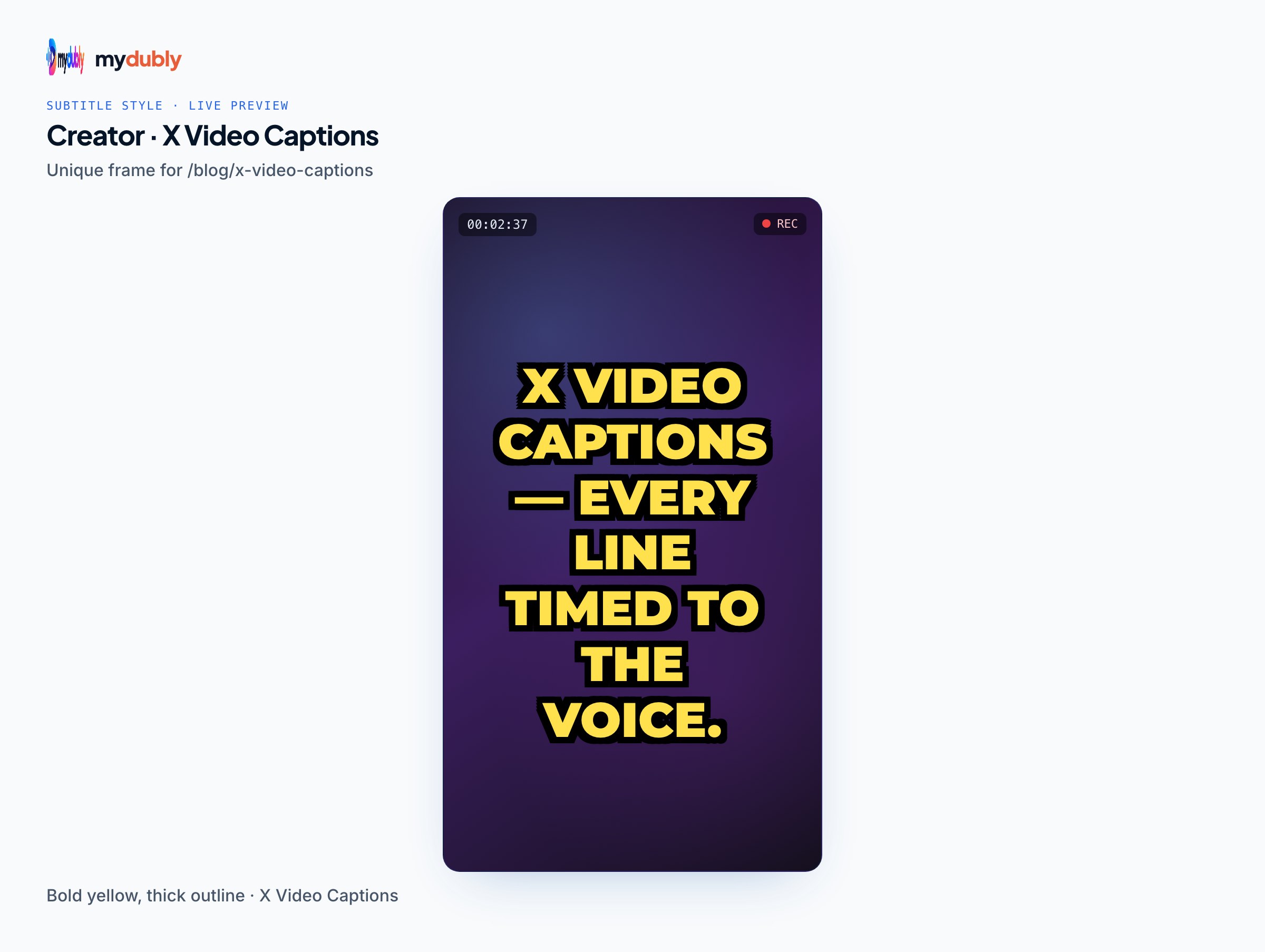
Uploaded SRTs only help when the viewer has captions on and the clip stays on X. Burned-in subtitles make more sense when:
- The video autoplays muted in the feed and you need the first seconds understood without a tap.
- You or others will repost the clip on platforms that don't take caption files, or share it in chat apps.
- You're posting from your phone, where there's no SRT option.
The subtitle editor can render the subtitles into an MP4 in your browser on a computer: choose a style preset, a position, and turn on "Show safe area" for 16:9 or 9:16 to keep text clear of X's on-screen controls. Burning translated subtitles walks through doing this for a second language, and the Twitter video subtitles page covers styling choices for X specifically.
A city council's comms officer posts a road-closure update. She burns Spanish subtitles into the picture for residents who scroll with sound off, and attaches an English SRT from x.com so English readers can turn on captions. One post serves both.
Limits and honest caveats
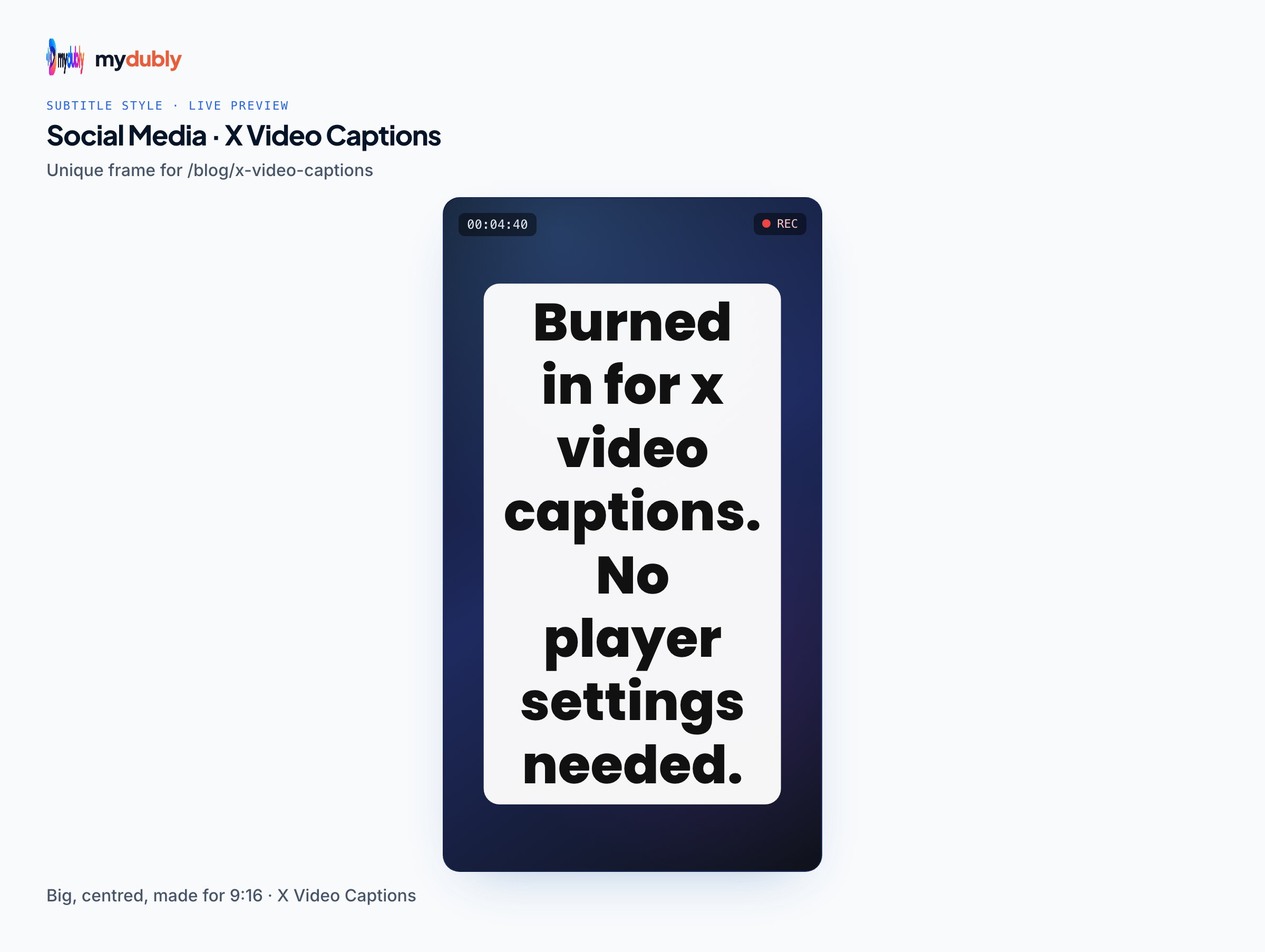
- The SRT option is web-only. If it doesn't appear, refresh after the video finishes uploading, or try another desktop browser.
- Uploaded captions can't be styled; X decides how they look.
- Burned-in captions can't be turned off or corrected after posting. Proofread before you render.
- mydubly can't fetch a video from an X link. Work from the original file on your computer.
- Captions from mydubly don't include speaker names or sound descriptions; add those by hand if you're captioning for deaf and hard-of-hearing viewers. Accessible social media videos covers the rest of the checklist, from alt text to contrast.
Frequently asked questions
Can I upload an SRT to X from the mobile app?
No. The "Upload caption file (.srt)" option appears in the post composer on x.com in a desktop browser, not in the X app.
Does X accept VTT caption files?
Public guides describe SRT as the accepted format for X's caption upload. Convert a VTT to SRT before posting.
Does X automatically caption videos?
Sources conflict: some guides say no, one reports an in-app caption generator, and RNID couldn't make X's automatic captions work. Upload an SRT if you need captions you can rely on.
Why did X reject my SRT file?
Most rejections come from formatting: missing blank lines between cues, wrong timestamp punctuation, or broken numbering. Check the file and save it as UTF-8.
Can I change captions after posting on X?
In the composer, the file is attached when you post. Verified accounts can replace subtitles later in Media Studio's Subtitles tab, according to RNID.
Should I upload an SRT or burn captions into my X video?
Upload an SRT for captions viewers can switch on and off on X; burn them in when the clip must be readable with sound off, posted from a phone, or reshared elsewhere.