Two meanings of "Snapchat captions"
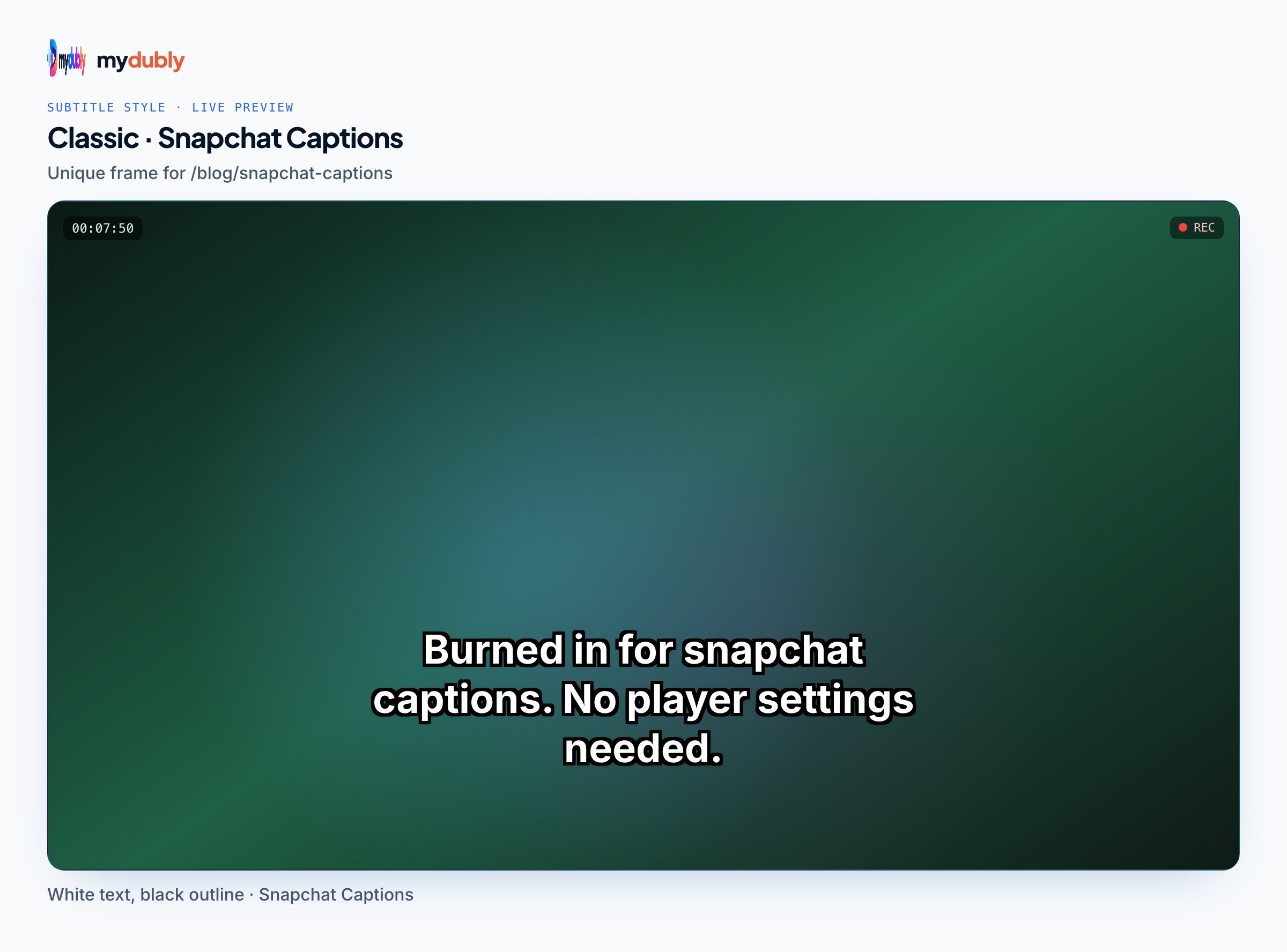
Searches for this term split in two. Many people want caption ideas: short lines of text to type over a photo. This guide is about the other meaning, text that shows what's being said in a video Snap, for viewers watching without sound or who are deaf or hard of hearing. Snapchat's creator best-practice notes encourage captions as one of the creative tools that help a Snap stand out.
Snapchat's built-in captions, step by step
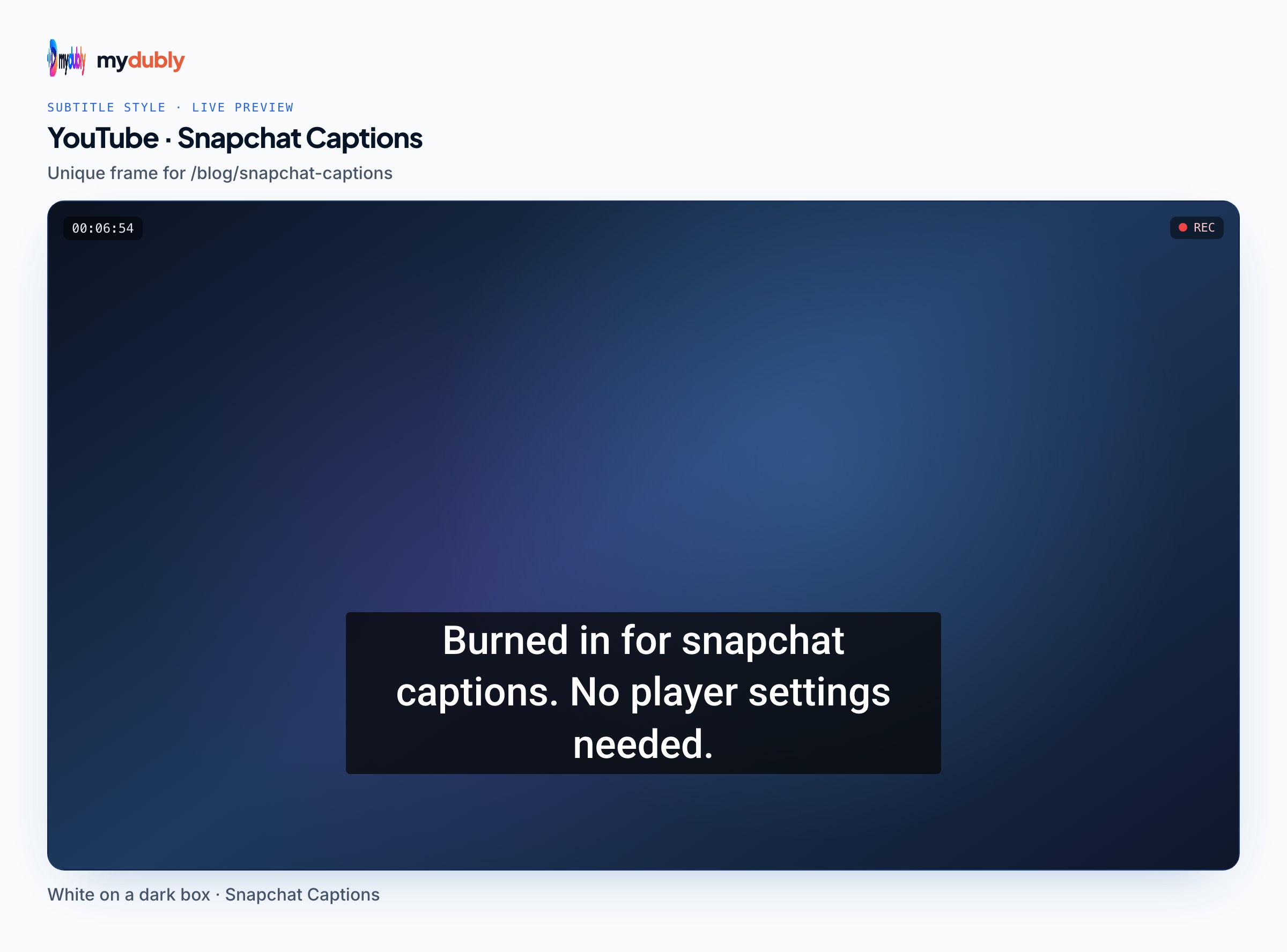
Snapchat's help describes the in-app flow:
- Record or select a video Snap so you're on the Preview screen.
- Tap the quotation-mark icon. Snapchat transcribes the audio and places closed captions on the Snap.
- Tap the captions to fix any words it got wrong.
- Drag them to a new position, pinch to resize, and twist to rotate.
- Post to your Story, send it, or post to Spotlight.
The text tool (the "T" icon) gives you more control for typed captions: styles above the keyboard, pinch to resize, bold, italic and underline through your phone's text formatting, a colour slider, @mentions, and a timer icon in the caption tool that sets when text appears. That timer is how you'd hand-time a few lines of dialogue without the automatic tool.
A sneaker reseller films a 20-second unboxing. He taps the quotation-mark icon, corrects the model name the captions misheard, drags the text above the shoebox so it doesn't cover the logo, and posts. For this kind of Snap, nothing else is needed.
Where the built-in tool runs out
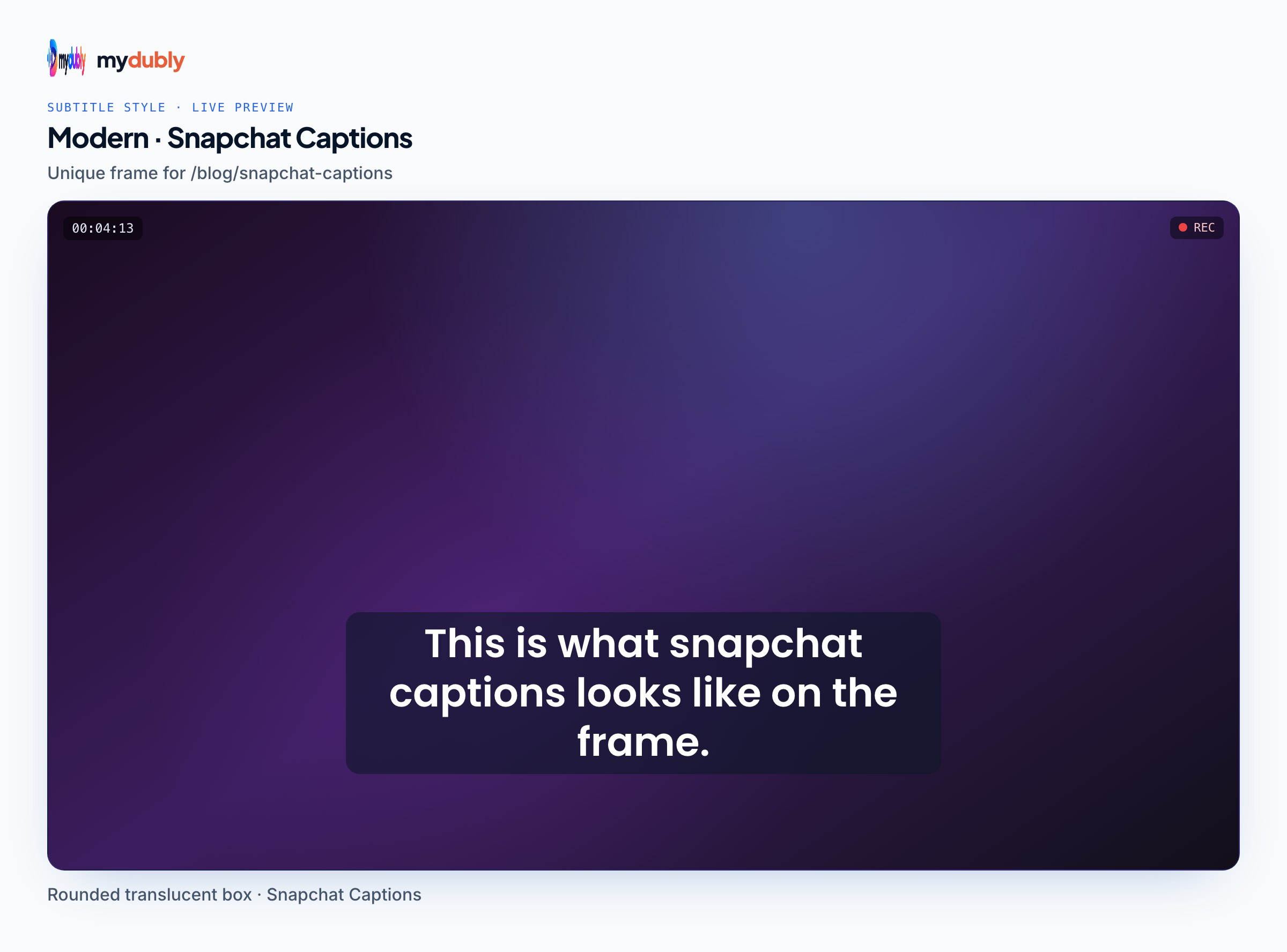
Native captions are tied to the phone and to the language spoken. They're the wrong tool when:
- You need the captions in a different language from the speech, for example English subtitles on a Snap narrated in Arabic.
- The video was edited on a computer and you want to proofread a long script at a desk.
- You're reusing a clip made for another platform and want the same subtitle look everywhere.
- You need exact control over line breaks and timing across a 45-second Spotlight video.
Snapchat doesn't document any way to upload a caption file such as SRT or VTT, so in all these cases the subtitles have to be part of the picture before the video reaches Snapchat.
Snapchat's web upload rules
Posting a finished MP4 from a computer is the cleanest path for burned-in subtitles, and Snapchat's help sets the rules:
- Where
- profile.snapchat.com in a desktop browser (public profiles can also use Ads Manager's Public Stories section).
- File
- MP4 video, 5 to 60 seconds long, at least 540x960.
- Shape
- Snapchat content is 9:16; the uploader crops other shapes automatically.
- Destinations
- Choose My Story or Spotlight Snaps under "Send to". Public profiles have to post to Public Story and Spotlight separately from the web.
The automatic crop is what catches people out. A 16:9 video with subtitles along the bottom will be trimmed at the sides, cutting off the ends of every line. Make the video 9:16 first, then add subtitles. In the app, Spotlight needs a vertical video Snap of at least 5 seconds; Snapchat's tips say horizontal, blurry and text-only Snaps won't show up in Spotlight.
Add subtitles to a Snapchat video from your computer
- Trim the video to 5 to 60 seconds if you'll upload from the web. The free trim tool cuts in your browser; fast mode copies without re-encoding, and "Exact cut" gives a frame-accurate start.
- Make it 9:16. If it's landscape, the free crop tool has a 9:16 preset with a draggable box, so you choose which part of the frame survives instead of leaving it to Snapchat's automatic crop.
- Create the subtitles. Open the vertical video in the mydubly subtitle generator; the video stays in your browser and only the audio track is uploaded. Anything up to 5 minutes costs the 25-credit minimum (0.5¢), and new accounts get 240 free credits. Or type the lines in the free subtitle editor.
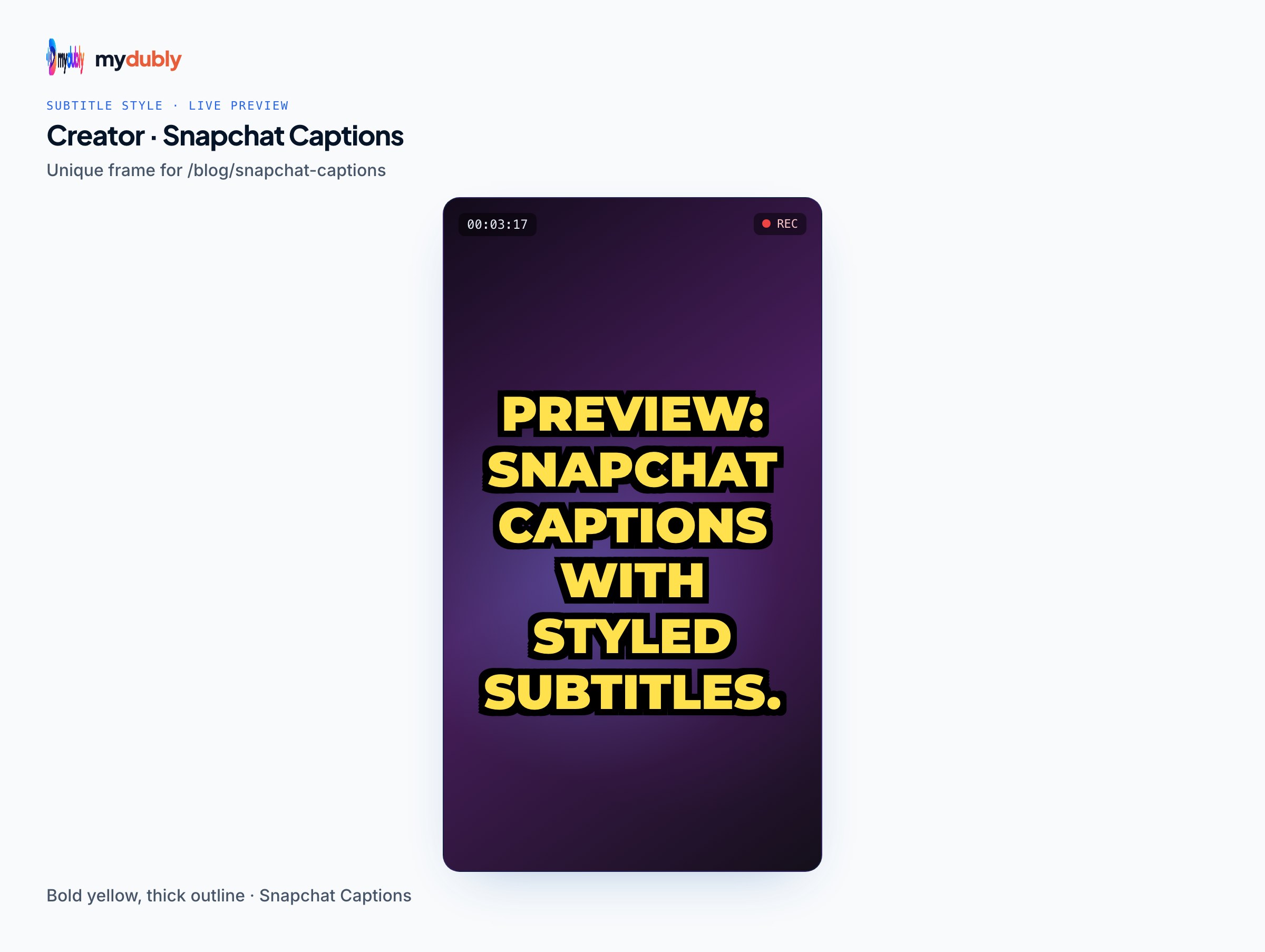
- In the editor, correct names and slang, and keep lines short: a 9:16 frame fits roughly 25 to 30 characters per line at a size people can read on a phone.
- In the Style tab, choose a preset with a background box, set the position, and turn on "Show safe area" for 9:16. Snapchat doesn't publish exact safe-zone measurements in its help, so keep text away from the very top and the bottom band of the frame, where the app overlays account details and buttons, and preview the result in the app.
- Render the MP4 with the subtitles burned in. This runs in a desktop browser (Chrome or Edge 94+, Safari 16.4+, or Firefox 130+).
- Go to profile.snapchat.com, drag the MP4 into the upload area, tick My Story or Spotlight Snaps, agree to the Creator Terms and post. Or send the file to your phone and post it from the app.
Translated subtitles for Snapchat
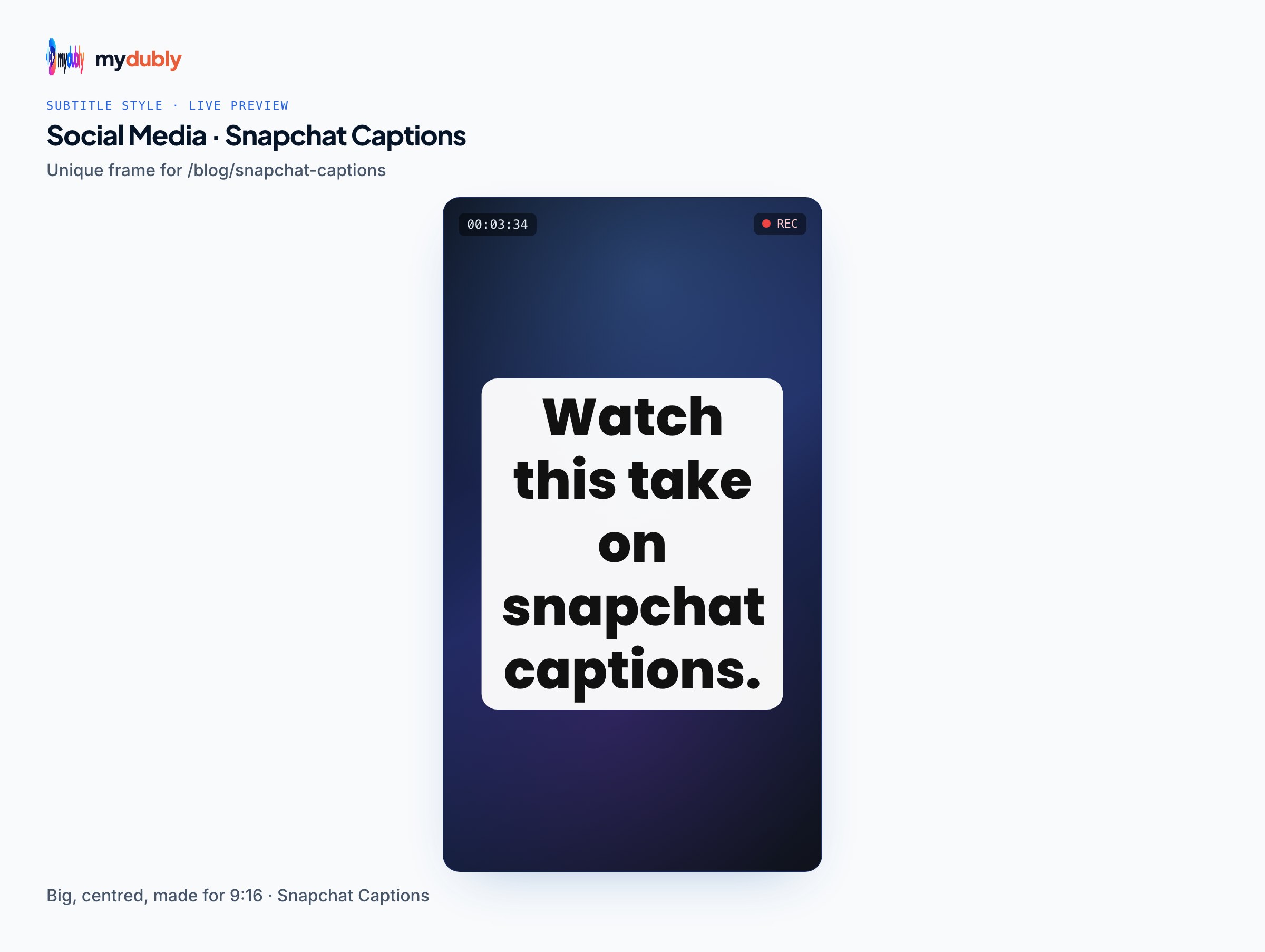
This is where burned-in subtitles earn their place. Run the clip through the mydubly video dubbing tool and pick the target language: translation is made from the audio into any of 21 languages, giving you an SRT you load into the subtitle editor and render. For a creator with followers in two countries, that means two uploads of the same video, each with subtitles in that audience's language.
A Dubai-based food creator films a 40-second street-food Spotlight in Arabic. She keeps Snapchat's auto-captions off, burns English subtitles into one copy for her international followers, and posts the original with Arabic captions from the in-app tool on a separate day. Both stay within the 60-second web limit.
If the same clip also goes to Instagram, the Instagram Reels subtitles page covers that platform, and the TikTok safe zone guide is useful if the same subtitled clip goes to TikTok too.
Limitations
- Burned-in subtitles can't be edited or hidden once posted. Proofread before rendering.
- If you also tap the quotation-mark icon on a video that already has burned-in subtitles, you'll get two sets of text. Use one or the other.
- The subtitle editor uses one style for the whole video; it doesn't make animated word-by-word captions.
- Rendering needs a computer. On a phone you can edit lines and export an SRT, but not render the MP4.
- mydubly can't open a Snap by link; start from the original video file.
Frequently asked questions
How do I turn on auto captions in Snapchat?
On the Preview screen of a video Snap, tap the quotation-mark icon. Snapchat generates captions from the audio, and you can edit, move, resize and rotate them.
Can I upload an SRT file to Snapchat?
Snapchat doesn't document any caption-file upload. To use subtitles made elsewhere, burn them into the video before posting.
What are the rules for uploading a video to Snapchat from a computer?
Snapchat's help says web uploads at profile.snapchat.com must be MP4, 5 to 60 seconds long and at least 540x960; other shapes are cropped to 9:16.
Why are my subtitles cut off after uploading to Snapchat?
The video probably wasn't 9:16, so Snapchat cropped the sides. Crop or convert it to 9:16 before adding subtitles, then render and upload again.
Can Snapchat captions be in a different language from the speech?
The built-in tool transcribes what's spoken. For another language, create translated subtitles and burn them into the video.
How long must a Spotlight video be?
Snapchat's help says Spotlight Snaps need to be 5 seconds or longer, and its tips say they should be vertical video with sound.